

Aftershoot
Image EditingUpdated November 12, 2026
Desktop AI app for photographers that culls big shoots, edits in your trained style and batch-retouches portraits offline, plus client galleries.
We may earn a commission when you sign up through our links. It does not affect our reviews.
What is Aftershoot?
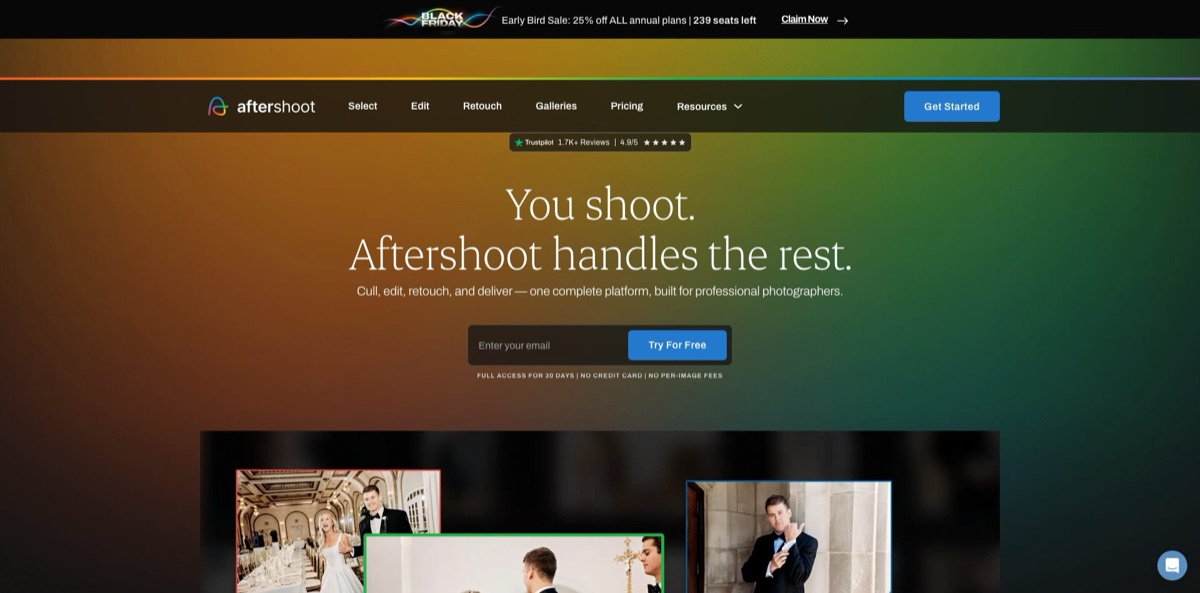
Built for photographers who come home with thousands of frames, Aftershoot is a desktop app for Windows and macOS that takes over the post-shoot grind. It culls a shoot, applies an AI edit trained on your own Lightroom or Capture One catalogs, batch-retouches portraits and, through its newest module, delivers client galleries. Processing happens locally, so RAW files never travel to a server, and every plan is a flat fee with no per-image charges, which sets it apart from cloud editors that bill by the photo. Photographer Justin Benson and developer Harshit Dwivedi founded the company in 2020. The weak spot is culling judgment: Trustpilot and Reddit users report sharp frames rejected and soft ones kept, so a manual check stays part of the job. It fits wedding, event, school and portrait shooters with steady monthly volume.
How to start using Aftershoot?
Download the app from aftershoot.com for Windows or macOS and start the 30-day trial, which gives full access and asks for no credit card. Check your machine first: the minimum is 8 GB of RAM and a reasonably recent CPU, and the site warns that previews and retouching may not work reliably on Intel integrated graphics or on GPUs with less than 2 GB of VRAM. Once the app and your AI profiles are downloaded, culling and editing run offline.
Your first real job should be a cull. On the Home screen click + New Album, then drag a folder of RAW or JPEG files onto the Import screen or click Browse; Lightroom and Capture One catalogs cannot be culled directly. Pick the shoot type, open the Cull tab and press Start Culling. AI Automated Culling makes a hands-off first pass, and its Cull to Target option fixes how many frames survive, anywhere from 10% to 60% of the shoot. AI Assisted Culling only groups duplicates and scores images, leaving every keep-or-reject decision to you.
Review is where most of your time goes. Switch between Grid View, Loupe View and Survey Mode, which puts up to 16 frames side by side, and work through the Cull Filters panel: Selected, Highlights/Maybe, Blurred, Closed Eyes, Duplicates and Unrated. For editing, open the AI Profiles tab, click New Profile and build a Professional AI Profile from your Lightroom or Capture One catalogs. It needs at least 2,500 edited images, 5,000 are recommended, and the upload and build can take several hours. An Instant AI Profile made from a Lightroom preset, or one of the 30+ Marketplace styles, gets you editing the same day.
Before delivery, check the AI edits in Aftershoot Develop, the built-in RAW editor with White Balance, Light, HSL, Color Grading and Detail controls, then run retouching across the album. Click Export Photos to save selections to a folder or send them to an editing app such as Lightroom Classic, Capture One, Photo Mechanic or Bridge. Ratings for RAW workflows are written to XMP sidecar files, and your originals are never overwritten.
Run your first trial album alongside your usual manual cull, so you learn where the AI’s picks match yours before you trust it with a wedding.
Who is it for?
Wedding photographers
A single wedding can leave you with 4,000 frames or more. Aftershoot groups duplicates, flags closed eyes and blur, and edits the keepers in your trained style for one flat fee. Wedding shooters on Reddit still recommend checking the rejected pile for once-only moments.
School and sports photographers
Picture days and team events produce huge, repetitive sets where per-image pricing adds up quickly. Flat pricing means 500 or 5,000 images cost the same, and People Filters find a named subject across Cull, Edit and Retouch. Trustpilot reviewers say fast action such as soccer is harder for the culling AI, so test with your own sport.
Portrait, newborn and boudoir photographers
Every session needs skin cleanup, stray hairs, glasses glare and sometimes a new backdrop. Retouch handles these across the gallery with 10 built-in presets and batch sync, while processing stays on your computer. You can also opt out of AI training on the import screen, which helps with NDA and private shoots.
Photographers who outsource editing
If you pay an editor or a per-image AI service every month, a trained Professional AI Profile turns that spend into a fixed subscription. Reddit users who compared trained profiles found Aftershoot and Imagen results very close, so cost and workflow decide.
Lightroom and Capture One loyalists
You want AI speed without giving up the catalog you have built over years. Aftershoot trains on those catalogs, exports ratings back to Lightroom Classic or Capture One and leaves originals untouched. Your favorite presets can become Instant AI Profiles in minutes.
Studios tired of a separate gallery service
Pixieset, Pic-Time or ShootProof means one more subscription and one more upload. Aftershoot Galleries adds proofing, face search and a print store with 0% commission from Aftershoot, and paid plans include free migration of up to 500 GB. A free Starter tier with 10 GB lets you try it on real clients.
Aftershoot pricing
Aftershoot sells modules rather than usage. Select (culling), Edit and Retouch can be bought alone or combined, and every plan is unlimited: there are no credits or per-image fees, so a 15,000-frame wedding costs the same as a headshot session. Each plan has three billing options: month to month, an annual commitment billed monthly, and prepaid annual, which the site quotes as a monthly figure. When checked on November 11, 2026, a Black Friday promotion took 25% off all annual plans; the prices below are the regular rates shown on the official pricing page.
Full access to culling, editing and retouching, with no credit card required. The Edit page also mentions a 30-day money-back guarantee.
Unlimited AI Automated and AI Assisted culling, Survey Mode and Spray Can, all integrations and offline processing.
AI editing with Marketplace styles plus AI cropping, straightening and masking.
Portrait retouching, retouching presets and batch sync.
During the promotion, the prepaid annual rate was shown only at the discounted $30/month.
Culling, editing and retouching together; the pricing page says 78% of users choose it.
Adds 1 Professional AI Profile and 3 Instant AI Profiles to your current plan.
Galleries also works without the desktop app.
Annual plans can be paused once a year for up to 3 months. If you cancel, you keep access until the end of the billing period, and upgrading converts your remaining time into credit toward the new plan. Students and educators can apply for a separate program.
Aftershoot key features
Two culling modes with Cull to Target
AI Automated Culling scores every frame, groups duplicates, flags blur and closed eyes and builds a selection, while AI Assisted Culling only groups and scores so you make each call yourself. Cull to Target fixes the final count between 10% and 60% of the shoot, which saves a second round when you promise clients a set number of images.
Review tools built for speed
Survey Mode compares up to 16 frames at once, Spray Can sorts photos into several categories in a single pass, and Key Face Detection surfaces frames where faces look their best. These tools turn the AI pass into something you can audit quickly rather than a black box.
Personal AI editing profiles
A Professional AI Profile learns from 2,500 or more edited images in your Lightroom Classic or Capture One catalogs, up to 15 catalogs per profile, and keeps improving as you feed it corrected edits. Instant AI Profiles turn a Lightroom preset into a style that adapts to lighting, and the Marketplace offers 30+ styles from working pros.
Aftershoot Develop and smart adjustments
The built-in RAW editor has White Balance, Light, HSL, Color Grading and Detail controls, plus subject and background masking, smarter straightening and portrait crop modes (close, medium and wide) that batch across an album. Export JPEG, TIFF or original files, or hand images to Lightroom, Capture One or Photoshop in one click.
AI retouching at album scale
Retouch covers blemishes, skin, stray hair, glasses glare, face shine, wrinkles, teeth, eye bags, dark circles and double chins, along with background replacement with shadows, cloth de-wrinkling and object removal on the RAW file itself. Ten built-in presets and batch sync carry one retouch across the gallery while adjusting to each image, and you can target settings by subject group. Plan on a GPU with at least 2 GB of VRAM for reliable results.
Local processing and privacy controls
Images are processed and stored on your computer, never on Aftershoot’s servers, and you can opt out of AI training on the import screen before a single photo is added. Workflows are non-destructive, with RAW ratings written to XMP sidecars.
Client Galleries
Galleries delivers photos and videos with proofing, favorites, comments, AI Face Search, Face Gating, flexible watermarks, screenshot protection and six client-facing languages. A print store with N-Photo fulfilment takes 0% commission from Aftershoot, though lab and payment costs still apply.
Aftershoot Pros & Cons
Pros
Aftershoot covers the whole post-shoot chain in one desktop app, from the first cull to a client gallery, at a flat price that does not punish big shoots. Edits trained on your own catalog keep a consistent look, and Reddit users who tried both say trained Aftershoot and Imagen profiles are hard to tell apart, which leaves the flat fee as the tiebreaker. Local processing means no uploading gigabytes of RAW files and no client images sitting on a third-party server. Trustpilot reviewers repeatedly praise fast support and a steady stream of new features such as People Filters. Train your Professional AI Profile on your best recent work rather than your whole archive, so the model learns the style you sell today.
Cons
Culling accuracy is the recurring complaint. Users on Reddit and Trustpilot describe sharp, well-exposed frames rated low while soft or dark ones are kept, intentional blur flagged as a fault and weaker results on fast sports, so many still review both the kept and rejected sets. Performance depends on hardware, and integrated graphics or GPUs under 2 GB of VRAM may not handle previews and retouching reliably. Several Trustpilot reviews also describe a cancellation flow with many retention screens, and a few report double charges or DNG files that would not load. Professional profiles need at least 2,500 edited images, so newer photographers start with presets. Keep a manual pass over rejected frames for ceremonies and other moments that cannot be reshot.
Use Aftershoot if you want…
- Cull thousands of wedding frames down to finals quickly.
- Edit every album in your own trained style.
- Replace per-image editing fees with one flat subscription.
- Batch-retouch skin, glare and stray hairs across galleries.
- Keep client RAW files off cloud servers entirely.
- Send rated selections straight into Lightroom or Capture One.
- Deliver proofing galleries and sell prints without commission.
- Turn a favorite Lightroom preset into an adaptive style.
Aftershoot alternatives

Aftershoot Reviews
Trustpilot reviewers describe big time savings on high-volume work, from a 15,000-frame wedding that processed smoothly to school picture days culled far faster, and many single out quick, friendly support.
A full-time wedding photographer on Reddit says the AI keeps about 40% of images and both the kept and rejected sets still need checking, so it adds value on some shoots but feels risky for weddings.
Reddit users comparing AI editors say trained Aftershoot and Imagen profiles look almost identical, and one photographer who dropped Imagen for Aftershoot praised the culling while admitting the edit tools take time to learn.
Critical Trustpilot reviews say the culling misjudges focus, exposure and closed eyes, treats intentional blur as a mistake and struggles with fast sports like soccer, even when the editing presets work well.
Billing is the other sore point: reviewers complain about a cancellation process full of retention screens, and a few report double charges or renewals after they believed they had cancelled.
FAQ
Is there a free version of Aftershoot?
The desktop app has no permanent free plan, but the 30-day trial includes full access to culling, editing and retouching with no credit card. Galleries has a free Starter tier with 10 GB of storage.
Does Aftershoot upload my photos to the cloud?
No. Images are processed locally on your Windows or Mac computer and are never stored on Aftershoot’s servers. Building a Professional AI Profile needs an internet connection for the upload, and you can opt out of AI training on the import screen.
Which editing apps does Aftershoot work with?
It exports selections and ratings to Lightroom Classic, Lightroom, Capture One, Photo Mechanic, Bridge and Adobe Camera Raw, and trains AI profiles from Lightroom or Capture One catalogs. The built-in Develop editor can also export JPEG, TIFF or original files directly.
Is there a limit on how many photos I can process?
No. Every plan includes unlimited processing for the modules you pay for, at the same price however many images you run.
What computer do I need to run Aftershoot?
A modern Windows or macOS machine with at least 8 GB of RAM and a relatively recent CPU. Preview rendering and retouching may not work reliably on Intel integrated graphics or GPUs with less than 2 GB of VRAM.
How many images do I need to train my own AI profile?
At least 2,500 edited images from Lightroom or Capture One catalogs, with 5,000 recommended for better results. If you lack that history, start with an Instant AI Profile from a preset or a Marketplace style.
Which file formats does Aftershoot support?
The official site lists RAW files from major cameras, JPEG and TIFF. Some users have reported trouble with DNG files, so test your own camera files during the trial.
Can I cancel or pause my Aftershoot subscription?
You can cancel at any time and keep access until the end of the current billing period without a further charge. Annual plans can be paused once a year for up to 3 months.
Similar tools
 HamaFree browser-based AI eraser that removes people, objects, text and blemishes from photos with a brush, plus an inpainting API for developers.
 BgEraserBrowser-based AI background remover that turns up to 20 photos per batch into transparent PNGs without an account, plus offline apps for
 ImgkitsBrowser-based set of AI photo tools for background removal, object cleanup, upscaling, old photo restoration, image generation and image-to-video.