
AutoDraw
Art GenerationUpdated October 27, 2026
Free Google Creative Lab drawing tool that guesses what you are sketching and swaps your doodle for clean artist-made clip art, with PNG download.
We may earn a commission when you sign up through our links. It does not affect our reviews.
What is AutoDraw?
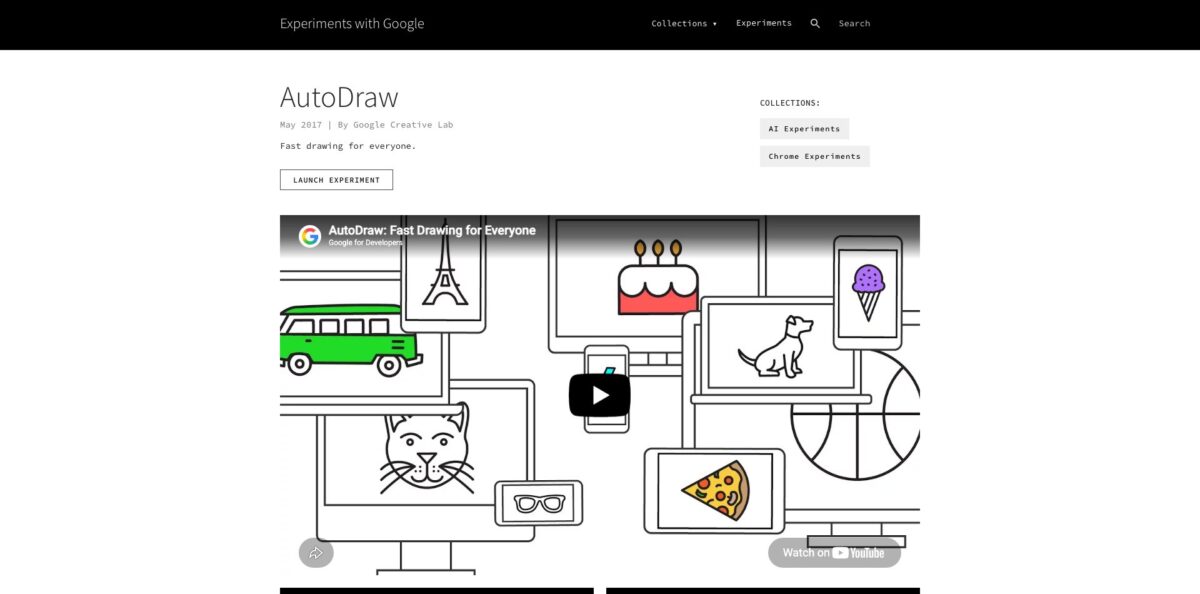
AutoDraw is a free browser drawing tool from Google Creative Lab that reads your rough strokes, runs them through the same recognition technology behind the Quick, Draw! game, and offers a row of matching drawings made by professional illustrators. Pick one and your wobbly sketch becomes a clean line drawing you can recolor, resize and combine with text and shapes. It launched in April 2017 as one of Google’s AI Experiments, runs on phones, tablets and desktops, and asks for no account and no payment. The catch is scope: it does not generate new artwork, the library covers only hundreds of objects, export stops at PNG, and the tool set still matches what reviewers described in 2017. Choose it when you need a simple icon or classroom visual in minutes, not when you need original illustration or vector files.
How to start using AutoDraw?
Open autodraw.com in any modern browser on a laptop, tablet or phone. There is nothing to install and no sign-in screen; the intro card offers two buttons, Start Drawing and Fast How-To. The How-To is a short run of looping clips that explains each tool in one sentence, with a footnote promising that the faster you click, the faster it goes. If you want a particular canvas shape, open the menu, choose Start over and pick landscape, square or portrait before you begin.
The AutoDraw tool is active by default, so your first job is simply to doodle. Sketch a rough cat, bicycle or birthday cake with a mouse, finger or stylus, and the suggestion tool starts guessing, showing a strip of candidate drawings across the top of the canvas. Tap the one that matches and AutoDraw swaps your strokes for the artist’s version. Repeat for each object in the scene. If the strip shows nothing useful, add a defining detail such as whiskers, handlebars or candles, because more strokes give the model more to work with.
The toolbar holds the rest of the kit: Select, AutoDraw, Draw for freehand lines, Type for text, Fill, Shape for rectangles, circles and triangles, a color picker, Zoom, Undo and Delete. Colors come from a built-in palette, and a slider sets line thickness. Open Shortcuts from the menu to learn the single-key switches (A for AutoDraw, D for Draw, T for Type, V for Select), which make desktop work noticeably quicker than clicking through the toolbar.
When the scene is ready, switch to Select to move, resize and rotate pieces, use the [ and ] keys to send objects back or bring them forward, then open the menu. Download saves a PNG of the canvas; Share uploads a copy and gives you a public link you can post to X or copy anywhere. Check that nothing hangs off the white artboard first, because a 2017 review by GIGAZINE found that parts of a drawing outside the canvas were cut from the downloaded PNG.
Who is it for?
K-12 teachers
You need a picture of a cell, a historical scene or a vocabulary word on the board in the next five minutes. AutoDraw turns a rough sketch into a clean drawing without an account, ads or a purchase order. Education sites such as TeachersFirst, TechLearning and Control Alt Achieve suggest it for sketchnotes, storyboards, infographics and presentation visuals.
Elementary students
Kids who believe they “can’t draw” get a polished result from a few strokes, which keeps them in the activity instead of erasing and giving up. The TCEA blog lists classroom ideas such as All About Me icon collages, illustrated vocabulary notebooks and poetry illustrations. One teacher even uses traced line drawings in it to build students’ mouse control.
Presenters and office workers
When a slide or org chart needs a simple icon, searching stock sites often takes longer than doodling one. Product Hunt reviewers describe AutoDraw as a middle ground between MS Paint and full drawing software for exactly this kind of quick visual. You get a consistent line style across several icons without design skills.
Bloggers and social creators
Simple header doodles and post icons come out clean and friendly, and nothing carries a watermark. Mind the export limit, though: you get a PNG, not a vector file, so plan sizes before you download. For larger graphics, sketch at the canvas size you actually need.
Party planners and casual doodlers
Google pitched AutoDraw for birthday cards, party invitations and fun doodling. You can sketch a cake, balloons and a line of text in one of the built-in typefaces and download the finished card in one sitting. No app, no template hunting and no subscription.
Designers sketching early ideas
For rough, wireframe-style icons during a brainstorm, AutoDraw is faster than opening a full editor. It works as a visual notepad while you settle on concepts. Move to a vector tool once the idea is approved.
AutoDraw pricing
Google runs AutoDraw as a free experiment with no business model attached: the official project page says there is nothing to download and nothing to pay for. There are no credits, seats, usage caps or watermarks to track, and because there is no account, there are no upgrade prompts either. Every feature described in this review is available to every visitor.
- Free: $0. Every tool, the full artist drawing library, PNG download and public share links, on any device and without signing up.
No paid, team or education tier exists, so there is nothing to compare and nothing to cancel. The trade-off of a free experiment is the lack of any service commitment: there is no support plan, no published roadmap and no guarantee about how long Google keeps the site online.
AutoDraw key features
AutoDraw suggestion tool
As you sketch, your strokes go to Google’s recognition model, the same technology behind the Quick, Draw! game, which returns a ranked strip of likely objects. Tap a match to replace your doodle with a finished drawing. Google says it can guess hundreds of objects, so everyday subjects such as animals, food, vehicles and household items work best.
Artist-made drawing library
The replacements are not generated on the fly; they are hand-drawn pieces from studios and illustrators including Selman Design, a New York studio that made most of them, plus HAWRAF, Erin Butner, Julia Melograna, Pei Liew, Simone Noronha, Tori Hinn and Melia Tandiono. The Artists screen lets you browse samples, suggest objects to add and find out how to submit your own drawings. You get a consistent, clean line style rather than the odd details image generators sometimes produce.
Simple editing tools
Beyond suggestions, you can draw freehand, add text in 15 typefaces at sizes from 8 to 96, place rectangles, circles and triangles, fill areas with color and adjust stroke width. The Select tool moves, resizes and rotates any object, and Undo and Redo cover mistakes. It is enough for a poster, a worksheet or a card, though there are no layers and no way to import a photo to trace.
Keyboard shortcuts
The Shortcuts screen lists single-key tool switches (V Select, A AutoDraw, D Draw, T Type, M Rectangle, L Circle, P Triangle, F Fill, + Zoom) plus Undo, Redo, Cut, Copy, Paste, arrow-key nudging, [ and ] for stacking order and Alt-drag to duplicate. On a desktop this turns a playful toy into a fairly quick sketch pad.
Any device, with local autosave
The interface adapts to phones, tablets and desktops, and on a phone it asks you to hold the screen in portrait. Your current drawing is kept in the browser’s local storage, so a page refresh does not wipe it. Start over clears it, and there is only one drawing per browser at a time.
PNG download and share links
Download produces a PNG of the canvas in one click. Share uploads the image and creates a public page you can post to X or copy as a link; people who open it see the picture and a Start Drawing button, but they cannot edit your work.
AutoDraw Pros & Cons
Pros
AutoDraw removes almost every barrier between an idea and a usable picture. There is no account, no payment, no ads and no install, so a whole class can start in seconds on Chromebooks, tablets or phones. The suggestion strip is quick and genuinely fun, and because the replacements are drawn by professional illustrators, results look consistent and tidy instead of strange. The basic tools, from text and shapes to fill and keyboard shortcuts, cover posters, worksheets and slide icons. For non-artists, watching a pig-shaped scribble come back as a recognizable dog is the whole appeal. Start with simple, common objects to see the tool at its best.
Cons
The limits show quickly. AutoDraw only matches against a fixed library of hundreds of objects, so abstract or very specific subjects return nothing useful, and recognition can misfire: one teacher’s pen became a pair of pants. Export stops at PNG with no SVG, and the image is cropped to the canvas. There is no cloud save, no project list, no collaboration, no layers and no image import. The project also shows its age: its official page still carries the 2017 wording, and the in-app About link now lands on the general Google Labs homepage. Treat it as a quick sketch helper and move to a vector editor for anything you plan to reuse.
Use AutoDraw if you want…
- Turn rough doodles into clean drawings in seconds.
- Make classroom visuals without an account or ads.
- Add simple icons to slides and org charts.
- Design quick birthday cards and party invitations for free.
- Help young students illustrate stories and vocabulary words.
- Sketch early icon ideas before opening a vector editor.
- Draw on a phone, tablet or laptop without installing anything.
- Share a drawing through a public link in one click.
AutoDraw alternatives
 KreaRead review →
 RecraftRead review →
 Leonardo.aiRead review →
 Adobe FireflyRead review →
 Nano BananaRead review →
 CanvaRead review →
AutoDraw Reviews
Product Hunt reviewers find it handy for basic drawings in presentations and org charts, calling it a flexible middle ground between MS Paint and heavier drawing apps, though one iPad user admits it is hard to fit into daily work.
One user loved it for simple icons: a rough dog sketch that looked more like a pig came back as a recognizable dog, which felt like playing Pictionary with a partner who always wins.
A teacher reviewer saw an apple matched perfectly while a pen and a fire were read as pants and a leaf, and still recommends it for sketchnotes, while worrying that the suggestions may take away some student creativity.
An education blogger praises how simple and free it is on any device, but points out that you cannot keep several drawings for later editing and cannot work on one together.
An early Reddit commenter found it cool but wished it were more than a clip-art library you search by doodling.
FAQ
Is AutoDraw free?
Yes. Google’s project page says there is nothing to download and nothing to pay for, and there is no paid tier, watermark or usage limit.
Do I need a Google account to use AutoDraw?
No. You open autodraw.com and start drawing straight away; there is no sign-in at any point, including for downloading or sharing.
Can I export AutoDraw drawings as SVG or vector files?
No. The Download option saves a PNG only, and Share creates a public link to the image. For vector output you need a tool such as Inkscape or Recraft.
Can I save a drawing and continue later?
Partly. Your current drawing stays in the browser’s local storage until you press Start over or clear site data, but there is no cloud saving, no file list and no way to open it on another device.
Is AutoDraw still available in 2026?
Yes. As of October 2026 autodraw.com loads and the suggestion tool still returns guesses. It remains an experiment, so Google offers no roadmap or guarantee of future availability.
Can I use AutoDraw drawings commercially?
The Artists screen describes the library as drawings made for public use, but Google publishes no specific license for them. Educators have asked for more clarity, so check Google’s terms before using them in paid products.
What happens to my sketches and shared images?
Your strokes are sent to Google’s servers so the model can guess what you are drawing, and shared images are uploaded to a public link. The site links to Google’s standard Privacy & Terms.
Does AutoDraw work on phones and tablets?
Yes. It runs in mobile browsers and on tablets with touch or stylus input; on a phone it works best in portrait orientation.
Similar tools
 CustomuseAI 3D creation platform that chains image, video and 3D models into node workflows for game-ready assets, Roblox items and scenes.
 VisualGPTCredit-based AI image and video studio that runs Nano Banana, GPT Image, Seedream, Flux and Kling for product photos, photo edits and
 LovartAI design agent that turns a chat brief into logos, social posts, product shots, slides and videos on one editable infinite canvas.