
Canva Text to Image
Image GenerationUpdated October 5, 2026
Canva Text to Image uses Magic Media to turn text prompts into high-quality visuals directly inside your design.
We may earn a commission when you sign up through our links. It does not affect our reviews.
What is Canva Text to Image?
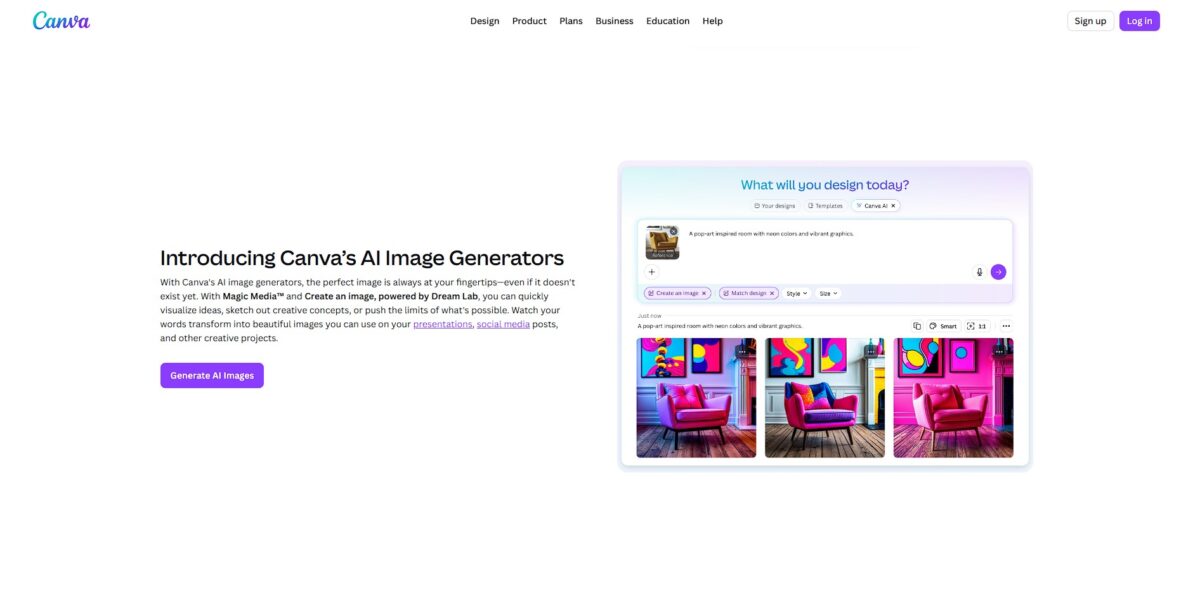
Canva Text to Image embeds generative AI directly into your design sidebar, letting you turn a sentence into a visual without switching browser tabs. It uses models like Magic Media and Dream Lab to produce four variations based on your prompt, which you can immediately drag into a presentation or Instagram template. I noticed that while it excels at stylistic art like watercolor or filmic vibes, it can feel more restrictive than standalone generators because you are bound by Canva’s specific safety filters and credit system. This integration matters because it removes the friction of downloading files from one AI site and uploading them to another just to finish a layout. The trade-off is less control over deep parameters like seed numbers, though the reference image feature helps align results with your existing brand aesthetic. Use this to skip the stock photo search when you need a specific, non-existent object for a design.
How to start using Canva Text to Image?
Open a new project or an existing design. Navigate to the Apps icon on the left sidebar and search for Magic Media to find the primary generator. It often sits near the top of the apps list, so you don’t scroll past dozens of third-party plugins, and it puts image generation exactly where you already handle typography and layouts.
Takeaway: Add the Magic Media app to your sidebar for one-click access in future sessions.Describe your visual idea in the text box using specific nouns and style descriptors like “filmic” or “watercolor.” Avoid single-word prompts. A prompt like “dog” usually yields a generic stock photo, while “golden retriever playing in a sunny park” creates a distinct, usable scene for a blog post. Detailed prompts keep you from wasting your monthly credit limit on unusable drafts.
Takeaway: if you get stuck on how to phrase a complex visual concept, try the “Inspire me” button.Select your preferred aspect ratio and art style before hitting generate. Canva produces four variations at once, which you can drag directly onto your canvas. The “Dream Lab” option on the homepage offers more upfront control for brand-consistent styles compared to the standard editor sidebar. Setting these first lets you match the image dimensions to your specific social media template before the AI even starts rendering.
Takeaway: Dream Lab suits specific branding work, while Magic Media handles quick, general creative assets.Refine the output using integrated tools like Magic Edit or Background Remover. If a generated character looks perfect but the background is distracting, use the one-click eraser to swap the environment without re-rolling the entire prompt. On the downside, these advanced edits often require a Pro subscription or draw from a separate pool of credits. Still, you can fix small composition errors manually instead of hoping the AI gets it right on a second attempt.
Takeaway: Use Magic Edit to change specific colors or objects within a generated image to save credits.
Who is it for?
Social Media Managers
Stop scrolling through stale stock photo libraries for your Instagram carousels. Generate a “cyberpunk neon coffee shop” or “minimalist desk setup” directly in your sidebar to match your brand’s specific hex codes. It excels at stylistic backgrounds but often flubs complex human anatomy like hands. You keep a unique visual identity without waiting for a photographer.
Solo Entrepreneurs
You need a professional LinkedIn banner or a quick flyer but don’t have a designer on speed dial. Type a prompt like “abstract blue geometric patterns for a tech startup” to fill a header space in seconds. The tight integration with Canva’s layout tools means you don’t have to worry about file formats or re-uploading. The gap between an idea and a live marketing asset gets much shorter.
Marketing Teams
Speed up your mood boarding during a brainstorm by visualizing concepts instantly. Instead of describing a “vibrant summer sale vibe,” generate four variations to show stakeholders what you mean. The catch is the credit limit on free plans, which can vanish quickly during heavy sessions. You get a shared visual language for the team before any “real” work starts.
Non-Profit Volunteers
Create engaging event posters on a $0 budget. You can generate specific illustrations for niche events, like a “watercolor golden retriever for a dog wash fundraiser,” which you won’t find in free icon packs. In testing, the AI-generated text was still hit-or-miss, so you’ll usually need to overlay your own headings. Your community outreach gets a polished, custom feel.
Presentation Pros
Ditch the boring “corporate blue” slide templates. Generate custom icons or thematic illustrations that actually relate to your specific data points, like “3D isometric chart showing growth.” It saves you from the “cliché stock photo” trap that puts audiences to sleep. A custom-looking deck signals a higher level of effort and professionalism.
Canva Text to Image pricing
Canva hides its generative power behind a complex credit system that feels more like a mobile game than a design tool. You aren’t paying for “unlimited” art; you are buying a monthly bucket of tokens that different features drain at different rates. The interface now swaps hard numbers for vague “usage” bars, making it difficult to predict exactly when you’ll hit a wall during a heavy project. This matters because a single complex video generation might cost twenty times more of your allowance than a simple background removal.
You get 200 standard or 20 premium AI uses monthly. This works for students who need one or two “wow” images for a presentation but fails anyone running a daily social feed. You’ll likely burn your entire month’s stash in one sitting of experimentation.
This bumps your ceiling to 2,000 standard or 200 premium uses. It handles high-volume content creation for freelancers who need consistent access without per-image micro-transactions. That takes away the immediate anxiety of “wasted” prompts while you refine a specific look.
You gain 4,000 standard or 400 premium uses plus 40 ultra-high-res generations. This tier suits marketing teams scaling ad variants across multiple platforms simultaneously. It also gives you the headroom needed for autonomous “agentic” workflows that perform multiple design actions at once.
Monthly add-on. If you hit your limit, this recurring payment resets your momentum with a 40x boost over the Pro allowance. Think of it as an emergency bypass for creators who can’t afford a “short pause” during a client deadline.
Canva Text to Image key features
Magic Media Integration
You generate images directly inside your design sidebar without leaving the project tab. That way you avoid the constant download-and-upload cycle typical of standalone AI generators.
Magic Layers Transformation
Canva converts flat JPEGs or AI outputs into independent, editable elements like text and objects. In practice, you can fix typos or move a background tree without regenerating the entire image, which saves hours of pixel-pushing in Photoshop.
Dream Lab Styles
Choose from preset aesthetics like Cinematic, Watercolor, or 3D Render to guide the model’s artistic direction. While it lacks the raw prompt flexibility of Midjourney, it ensures your visuals align with a specific brand vibe on the first try. You also spend less time guessing the right “engineering” keywords.
Magic Switch Utility
Transform your visual designs into different formats, such as turning a presentation slide into a summary or a blog post. This works well for social media managers, though the text results often need a human edit to feel less robotic. One asset can then be repurposed across multiple platforms instantly.
Native Design Tools
Drag AI images into existing templates and immediately add branding elements or vector graphics. The trade-off is a lower quality ceiling for photorealism compared to dedicated models like Flux. What you get is a final, usable social post rather than just a raw image file.
Canva Text to Image Pros & Cons
Pros
Canva places image generation right where you design, so you stop jumping between browser tabs to find assets. It offers specific styles like “Filmic” or “Watercolor” that help match a brand’s visual identity instantly. The Magic Media tool handles lighting and texture well, creating usable social media backgrounds from simple prompts. For non-designers who need unique graphics fast, that removes the technical barrier.
Cons
The generation speed depends on your credit limit, which feels restrictive during heavy creative sprints. I noticed the safety filters can be overzealous, blocking certain prompts that seem harmless but trigger hidden keyword flags. While it excels at artistic vibes, it often struggles with precise anatomical details or complex spatial logic compared to specialized standalone tools. This matters because you might waste several attempts trying to get a specific human pose right.
Use Canva Text to Image if you want…
- Generate unique visuals without leaving your design canvas
- Instantly turn marketing copy into striking social graphics
- Create custom illustrations for professional presentation decks
- Swap stock photos for AI-generated brand assets
- Experiment with artistic styles for creative project layouts
- Build consistent visual themes across multi-page documents
- Access generative magic directly within a familiar editor
- Scale content production using rapid text-to-image prompts
Canva Text to Image alternatives
 Adobe FireflyRead review →
 PixlrRead review →
 FotorRead review →
 BeFunkyRead review →
 Nano BananaRead review →
 MidjourneyRead review →
Canva Text to Image Reviews
I love how I can describe a scene and drop the result straight into my templates; it cuts out the stock photo hunt and saves me real time.
The interface is incredibly intuitive for beginners, though I’ve noticed the AI sometimes needs very specific prompts to get the details exactly right.
Being able to generate and edit imagery in one place is a game changer for social media marketing, even if the monthly credits feel a bit limiting.
FAQ
Can I use Canva AI-generated images for commercial purposes?
Yes, you can use images for commercial projects provided you follow Canva’s AI Product Terms. However, you may not have exclusive copyright ownership of the generated visuals.
What image styles are available in Magic Media?
You can choose from several artistic styles including Watercolor, Filmic, Neon, Color Pencil, Retrowave, Dreamy, and Anime to customize the look of your output.
Is there a limit to how many images I can generate?
Free accounts have a limited monthly allowance of AI generations. Canva Pro, Business, and Education users receive a higher monthly allowance of AI credits for premium tools.
Can I generate images of celebrities or brands?
Canva recommends against creating images of public figures or recognizable brands as they are protected by legal rights and trademarks, and safety filters may block such requests.
Does Canva offer multiple AI models for image generation?
Yes, besides the native Magic Media tool, you can access third-party AI apps like DALL-E by OpenAI and Imagen by Google Cloud directly within the Canva Apps directory.
Can I edit the text within an AI-generated image?
While you can’t edit the pixels of the original text directly, Pro users can use the Grab Text tool to extract and replace text from a flat image with editable fonts.
Are my AI-generated images private?
Your generated images are part of your private design project unless you choose to share the design or publish it to a public folder or social media.
Similar tools
 BannerbearTemplate-based API for generating on-brand images, PDFs, animations and videos at scale from your data via REST, Zapier, Airtable or AI agents.
 Generated PhotosLibrary of 2.6M+ AI-generated faces plus face and full-body human generators for model-release-free people images in design, ads and research.
 VheerBrowser-based AI studio for text-to-image, photo editing and image-to-video, with a free no-signup model plus credit access to Nano Banana, Sora 2