

Gencraft
Video GenerationUpdated October 5, 2026
Gencraft transforms text and images into high-quality 4K art and cinematic videos with custom character consistency.
We may earn a commission when you sign up through our links. It does not affect our reviews.
What is Gencraft?
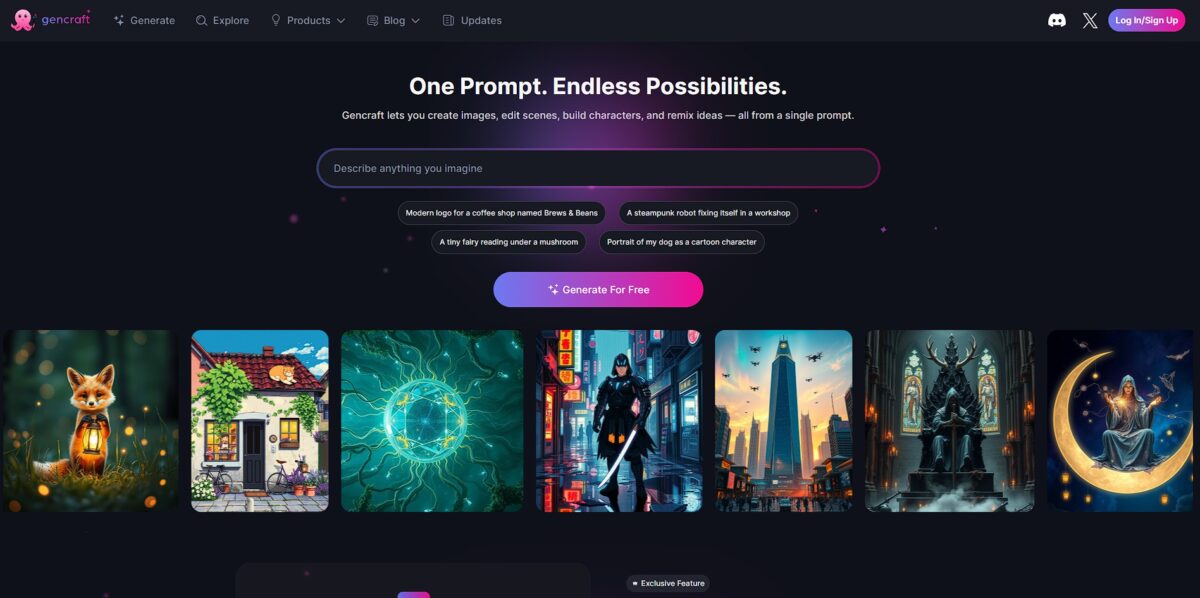
Gencraft functions as a creative sandbox where text prompts transform into 2-second video clips or static art across thirty-one distinct styles. It moves beyond generic generation by allowing you to train custom models on your own images, which helps maintain visual consistency for a specific character or brand asset. While the default model excels at photorealistic textures from short prompts, the advanced model handles complex, multi-layered descriptions for more abstract or painterly results. That flexibility lets you prototype a steampunk logo or a whimsical 3D scene without manual rendering. This matters because it bridges the gap between a vague idea and a usable visual asset in minutes. Just remember that the AI can struggle with negative instructions like “no pool,” so using the dedicated negative prompt field is a better way to filter out unwanted elements.
How to start using Gencraft?
Head to the Gencraft website or download the app. You can start without a complex setup or long tutorials. Sign in using a Google or Discord account to skip the manual registration forms. This gets you into the dashboard immediately so you can start testing prompts while your creative momentum is still high.
The interface centers on a simple text box. Type a description of the scene or object you want to see. You can pick from over thirty visual styles, like Cyberpunk or Oil Painting, to change the aesthetic without rewriting your entire prompt. It works well for quickly iterating on different “vibes” for a character design, though the two-second video limit means you’re making clips rather than short films.
Click the generate button and wait a few seconds. The tool provides a set of initial results based on your text. If the motion looks off or the artistic style isn’t hitting the mark, adjust your keywords and try again. Using specific descriptors for lighting or camera angles helps ground the AI and prevents generic results.
Browsing the community feed is a smart move before you burn through your credits. You can see the exact prompts others used to get specific textures or movements. This is the fastest way to learn the “hidden” language of the model without wasting your own daily allowance on trial and error.
Useful takeaway: Start with the community feed to copy successful prompt structures before spending your own credits on experimentation.
Who is it for?
Indie Game Developers
Rapidly visualize characters and environmental assets during the pre-production phase. It helps skip the manual sketching of dozens of silhouettes when you just need to test a vibe or a color palette. The time between having an idea and seeing it on screen shrinks considerably.
Social Media Managers
Generate unique backgrounds for product announcements or themed posts without hunting through overused stock libraries. You can create a custom scene that fits your brand’s specific aesthetic in seconds. This allows for a consistent visual identity without a dedicated design budget.
Concept Artists
Use the tool to break through creative blocks by generating random interpretations of a prompt. It works well for finding unexpected silhouettes, though it is less ideal for final, high-resolution production assets. This helps you explore more diverse visual directions before committing to a single path.
Hobbyist Content Creators
Turn personal photos into artistic avatars or stylized clips for fun projects. It removes the barrier of needing professional editing skills to create something that looks intentionally designed. This makes digital art accessible to anyone with a browser.
Creative Directors
Quickly assemble mood boards for client pitches to communicate a specific atmospheric direction. It’s faster than manually searching for references that almost, but don’t quite, match the vision in your head. This ensures everyone on the team starts on the same visual page.
Gencraft pricing
Gencraft uses a credit-heavy model that favors consistent users over occasional dabblers. You can explore the basics for free, but the daily credit resets are stingy. Moving to a paid tier removes the watermarks that usually ruin a clean composition. I noticed the weekly billing option is a bit of a trap; stick to monthly or annual plans if you actually plan to finish a project.
Daily credits for basic images. Expect watermarks and queues, but you can test prompts without committing cash.
It clears the watermark hurdle for social media posts, so your renders finally look professional.
You stop counting credits during deep creative sessions and can iterate until the lighting is perfect.
Custom Training ($2.99 per model): One-off payments to teach the AI a specific face or style, which keeps your brand assets consistent across different scenes.
Gencraft key features
Train custom models using 5 to 200 personal images to replicate a specific style or person
This bypasses the generic look of standard AI by letting you caption your own dataset for specialized character consistency. Your protagonist won’t look like a different person in every new frame.
Select from 31 distinct style presets including Ink, 3D, and Cyberpunk to skip long descriptive prompting
The presets handle lighting better than manual text instructions and save you from trial-and-error with “in the style of” modifiers, though they can feel a bit rigid if you want a hybrid look.
Animate static art into 2-second video clips directly from the generation interface
It creates movement from your text or existing images, though the motion is often subtle rather than a full cinematic scene. Still, it’s a quick way to test how a character moves before committing to a longer production.
Refine specific image sections with Magic Edit instead of regenerating the entire canvas
You can swap out a background or change a character’s clothing without losing the parts of the image that actually work. No more “losing” a great face just because you wanted to fix a hand.
Generate variations of an existing image using the Image-to-Image transformation tool
This allows you to keep the composition of a sketch while exploring different textures or lighting setups. A rough storyboard can become a polished visual in seconds, although the result can stick too closely to the original if your “influence” slider is set too low.
Upscale your final selections to 4K resolution for professional printing or large-screen displays
While the standard 1024px output works for social feeds, the 4096px upgrade clears up the “AI fuzziness” in complex textures like hair or grass. Your digital art becomes usable for physical posters or high-end web design.
Gencraft Pros & Cons
Pros
Gencraft nails the variety of visual aesthetics with over thirty style presets. You can swap between cyberpunk neon and delicate oil paintings without manual lighting adjustments. I noticed the Character Guide excels at keeping a protagonist’s facial structure consistent across different backgrounds. This matters because it prevents the “morphing face” issue that usually ruins AI storyboarding. Pro users can even train custom models on their own image sets to replicate a niche brand style. Use the Prompt Enhancer if your initial description feels too thin to get a detailed render.
Cons
Free users face tight daily credit resets and mandatory watermarks on every export. The video output is currently limited to 2-second clips, which makes narrative pacing difficult for filmmakers. While style presets are diverse, the engine occasionally ignores negative prompts when using specific community-made models. You might end up with unwanted elements like extra limbs or blurred text in your 4K downloads. The trade-off for creative control is a per-model training fee that stays locked behind a subscription. Stick to simple keyword lists rather than long sentences if the model starts hallucinating background details.
Use Gencraft if you want…
- Turn complex text prompts into high-resolution artistic visuals.
- Train custom AI models using your own unique style.
- Animate static ideas into captivating two-second video clips.
- Maintain character consistency across diverse image variations.
- Modify specific image sections with precise magic editing tools.
- Access professionally designed presets for instant high-quality results.
- Share creations and gain influence within a vibrant community.
- Generate stunning 4K assets for professional design projects.
Gencraft alternatives
 OpenArtRead review →
 MidjourneyRead review →
 Adobe FireflyRead review →
 Leonardo AIRead review →
 Canva Magic MediaRead review →
 Playground AIRead review →
Gencraft Reviews
The style variety is impressive for quick concept art, but the “quality standard” errors are a total credit sink. It’s frustrating to pay for a generation only to have it fail and still count against your daily limit.
I love the custom model training for keeping my characters consistent, but the mobile app is a bug-ridden nightmare. It crashes almost every time I try to view my library or refine a prompt.
The Enhance Prompt feature really helps nail the details, though it still struggles with specific requests like curly hair or non-human skin tones. Great for hobbyists, but the lack of granular control makes it tough for professional work.
FAQ
Can I use Gencraft for commercial purposes?
Commercial use is generally permitted if you maintain a paid subscription; however, free users are limited to personal, non-commercial use, and any user generating on behalf of an enterprise with over $1 million in revenue must use the highest tier subscription.
Can I train my own AI models on Gencraft?
Yes, Gencraft allows you to upload between 5 and 200 images to train custom models that replicate a specific person or unique artistic style.
What is the difference between the Default and Advanced models?
The Default model is designed for ease of use and delivers impressive results with short prompts, while the Advanced model offers more granular control for experienced users seeking specific outputs.
Does Gencraft support video generation?
Yes, Gencraft can transform text prompts into 2-second video clips, allowing you to animate your artistic ideas with realistic motion and depth.
In what resolutions can I download my creations?
Standard users can download images in HD (1024 x 1024), while premium subscription users have access to 4K resolution (4096 x 4096) downloads.
Can I exclude certain elements from my images?
Yes, Gencraft includes an Advanced Negative Prompt feature that allows you to specify exactly what objects, colors, or styles you want to exclude from your final creation.
Similar tools
 AIAIAll-in-one AI studio that puts Veo, Sora, Kling, Seedance and other models behind one credit balance for video, images, music and voice.
 ToMoviee AIWondershare's AI creative studio that turns text prompts and images into short videos, pictures, music, sound effects and voiceovers.
 Morph StudioBrowser AI video studio that runs Seedance, Kling, Veo and its own style transfer model, with a storyboard canvas for multi-shot clips.