

HitPaw FotorPea
Image EditingUpdated November 10, 2026
AI photo enhancer for Windows and Mac, formerly HitPaw Photo AI, that upscales, sharpens, denoises, colorizes and restores old or blurry photos.
We may earn a commission when you sign up through our links. It does not affect our reviews.
What is HitPaw FotorPea?
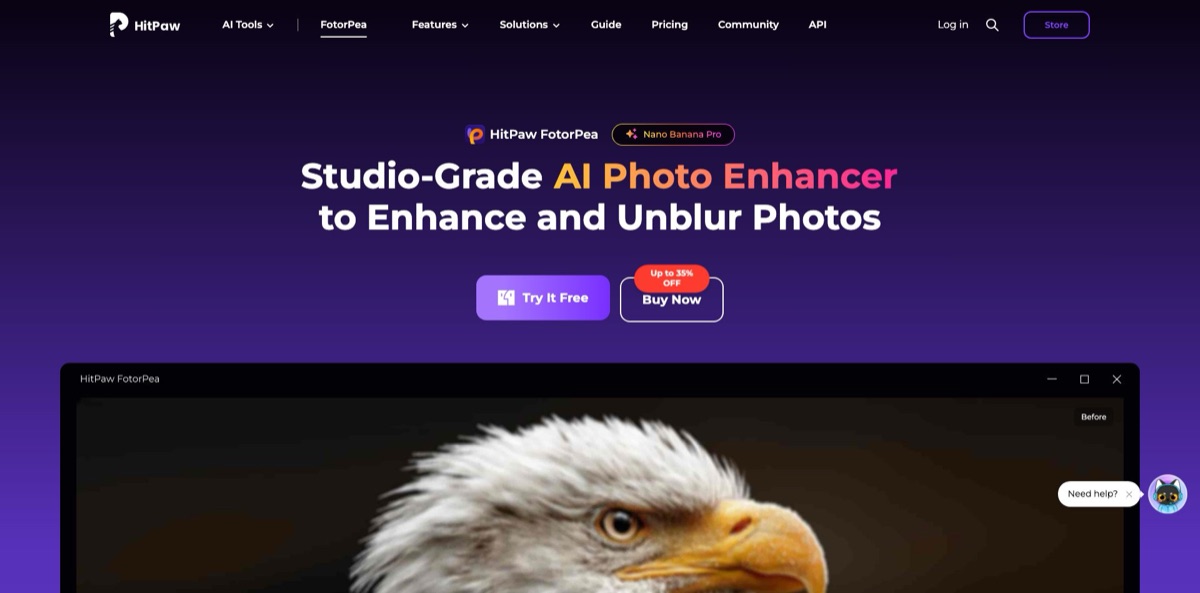
HitPaw FotorPea is a desktop AI photo enhancer for Windows and Mac, previously sold as HitPaw Photo Enhancer and then HitPaw Photo AI before the 2024 rename. You load a soft, noisy, low-resolution or damaged image, pick a model (face restoration, upscaling up to 8X, denoise, blur repair, low-light, text, colorize, scratch repair) or let Auto Mode choose, preview the result and export. Standard enhancement runs on your own computer, while cloud rendering, the AI image generator and most editing tools draw from a credit balance. Newer releases add an AI Canvas for chat-style edits, object and background removal, ID photos and a Photoshop plugin. The weak spots are a free version that cannot export, plan credits that expire, and a billing and refund record that attracts many complaints. It suits people rescuing old family prints, blurry event shots or small product images on a reasonably powerful machine.
How to start using HitPaw FotorPea?
Download the Windows or Mac installer from the FotorPea product page, or leave your email there to get the 7-day desktop trial link. The installer has a custom option where you choose the interface language and install path. Check your hardware first: the getting-started guide lists Windows 10 or 11 (64-bit) or macOS 13 and later, 16GB of RAM and a GTX 1060 or RX 580 class graphics card as the minimum, with 24GB and an RTX 3060 recommended, while the product page quotes lower specs. After you buy, sign in inside the app with the email used at checkout. A Windows license works only on Windows and a Mac license only on Mac.
For a first real job, open AI Enhancer, click Enhance Photos Now and drag in a photo or use Choose File; a bundled sample image lets you see the effect before using your own. Auto Mode detects the image type and applies a generative preset such as Portrait, General Upscale, Maximum Deblur or Old Photo Restoration. Custom Mode lets you stack models yourself, for example Face Restoration (Soft V1, Soft V2, Realistic or Sharp) on top of AI Upscale at 2X. Click Preview to compare before and after. In the free version this is where you stop, because the guide states that export is blocked until you buy.
The settings that change results most sit in the model panel and in Preferences. AI Upscale offers 1X, 2X, 4X and 8X or a custom width and height, plus three modes: Generative for weak, noisy sources, Soft for noisy portraits and High Fidelity for clean DSLR or AI-generated images. Denoise has RAW, Realistic and Creative variants, and the Sharpen model treats lens, motion and compression blur separately. The gear icon beside Export opens Preferences, where you set the multi-task limit, keep or strip EXIF data and choose original format, PNG or JPEG output.
Once one image looks right, scale up. Add more files, or pick Upload from Phone and scan the QR code to pull pictures from your handset. The app suggests a model for each image, and Apply to Combinations pushes one setting to the whole set. Clicking Export opens a confirmation that lists every image, its model and the estimated credit usage. If your computer is slow, Cloud Rendering sends the job to HitPaw servers for credits priced by output size. Zoom to 100% on faces before you confirm, since generative models can change features.
Who is it for?
Family historians
Boxes of faded, scratched and black-and-white prints are slow and expensive to retouch by hand. Scratch Repair, Colorize and the generative restore models handle single portraits and group shots in a few clicks. You get printable copies to share without booking a restoration studio.
Event and hobby photographers
Motion blur at sports days, missed focus and grainy low-light frames ruin otherwise usable shots. The Sharpen, Denoise and Low-light models target each defect separately and accept RAW files. You recover keepers from a shoot instead of discarding them.
Online sellers
Product photos taken on older phones look soft on large screens and in marketplace zoom views. Batch upscaling plus the Background Remover gives a more consistent catalog. Listings look sharper without paying a product photographer.
Photoshop users
Switching apps to upscale an image or fix a face breaks a layered workflow. The FotorPea plugin from Adobe Exchange runs face restoration, upscaling, deblur and repair models inside Photoshop. Budget for it separately, because the plugin has its own subscription and credits.
Content creators
Social posts need quick fixes and the occasional generated image. The AI Generator, AI Canvas chat edits, AI Replace and background tools sit next to the enhancer. You can handle simple visuals in one app rather than juggling several subscriptions.
Small studios and teams
Several editors need licenses and a shared pool of credits for generative work. Annual team plans cover 5, 10 or 100 computers with permission for company use. Licensing and billing stay in one place.
HitPaw FotorPea pricing
HitPaw sells FotorPea as a per-computer desktop license with separate Windows and Mac prices, and every plan includes a fixed number of credits for cloud rendering and AI creation tools. Plan credits do not roll over: monthly credits expire at the end of the month and yearly credits at the end of the subscription year, while separately purchased Credit Bundles never expire. The pricing page shows struck-through list prices beside a standing discount, plus a countdown coupon (HP-AI-20) for an extra 20% off yearly and perpetual plans. Prices below are in USD, exclude tax and were checked on November 7, 2026.
You can download the app and preview results, but watermark-free previews and exports are locked. The comparison table allows a few tries in some AI tools, for example 2 AI Generator runs, 3 Background Remover images and 5 AI Chat Editing sessions.
Includes 100 credits per month, all enhancement models, batch processing and the AI editing tools.
Includes 500 credits per year and free major-version upgrades while the subscription is active.
Includes 800 credits valid for life, but only updates within the current major version; upgrades cost extra.
$256.95/year for 5 PCs with 4,000 credits, $499.95/year for 10 PCs with 10,000 credits and $899.95/year for 100 PCs with 25,000 credits, with company-use permission and tech support.
Custom. Larger deployments go through a sales form on the pricing page.
Billed separately through Apple, at $9.99/week with 100 credits, $19.99/month with 400 credits or $69.99/year with 1,800 credits.
For scale, the yearly card says its 500 credits cover up to about 250 AI Generator images, 500 background removals or 125 cloud renders. Read the trial terms closely: the plan cards advertise a 7-day free trial that then auto-renews at US$43.19/month on Windows (US$70.39 on Mac), and the FotorPea Studio bundle adds 3-day mobile and plugin trials that renew at $41.57/month. HitPaw promises a 30-day money-back guarantee, but its refund policy excludes change of mind, uncancelled renewals and requests made after the job is done.
HitPaw FotorPea key features
Auto Mode and Custom Mode
Auto Mode detects the image type and applies a generative preset such as Portrait, Maximum Deblur, Smart De-Reflection for glasses and windows, AI Realism for plastic-looking AI images, or Ultra Clarity 6X and 8X. Custom Mode exposes the individual models and lets you stack them, for example face restoration over an upscale. Beginners get a one-click result, while experienced users keep control when Auto picks the wrong preset.
AI Upscale with three fidelity modes
You scale by 1X, 2X, 4X or 8X, or type exact output dimensions for a print size or a marketplace spec. Generative mode rebuilds detail in poor sources, Soft keeps noisy portraits gentle, and High Fidelity preserves texture in files that are already sharp.
Targeted repair models
Denoise comes in RAW, Realistic and Creative versions, and NEF and other RAW files are on the supported input list. The Sharpen model separates lens, motion and compression blur, while dedicated Text, Animation and Low-light models handle screenshots, anime art and night shots. Fixing the actual defect usually beats a generic sharpening slider.
Old photo restoration and colorization
Scratch Repair removes creases and dust, Colorize adds context-based color to black-and-white images, and Color Calibration corrects faded or yellowed prints. Generative restore options include Multi-Portrait Restore and Colorize for group photos and Single-Person Restore for creased portraits. Family archives become shareable without manual retouching, though restored faces should always be checked against the original.
Batch processing and Cloud Rendering
Load a folder, accept or change the model suggested for each image, and export everything in one run after an estimate of the credits needed. Cloud Rendering moves heavy jobs to HitPaw servers when your graphics card struggles, with the credit cost tied to output size. Large jobs finish without tying up your computer, at the price of uploading files and spending credits.
AI Photo Editor and generator
AI Canvas takes plain-language instructions in a chat panel and sits next to AI Replace, object removal, background removal and replacement, passport and visa ID photo sizing, and AI Swap. The AI Generator turns text or reference images into pictures with models such as Nano Banana Pro. These tools cover quick social and marketing visuals, but most of them consume credits.
Photoshop plugin
The HitPaw FotorPea plugin installs from Adobe Exchange and appears under the Plugins menu in Photoshop. It offers face restoration, upscaling, denoise, deblur and low-light enhancement, plus repair models labelled Repair Pro and Repair Max that run on Nano Banana models. Results return to your document for further editing, but the plugin is billed separately from the desktop app.
HitPaw FotorPea Pros & Cons
Pros
The main strength is the range of narrow models. Instead of one generic enhance button, you get separate tools for faces, motion blur, compression artifacts, RAW noise, low light, text and old prints, and you can stack them. Users single out face recovery and text unblurring as standouts, and because standard enhancement runs locally, routine edits do not drain credits. Batch export with per-image model suggestions saves real time on large folders, and a perpetual license is still on offer for people who avoid subscriptions. Platform coverage is broad: Windows, Mac, web, iOS, Android and Photoshop. Use Custom Mode on difficult files and Auto Mode for bulk jobs.
Cons
The free version only previews, so you cannot judge exported quality before paying. Pricing is hard to read: list prices sit beside standing discounts and countdown coupons, Windows and Mac licenses are sold separately, and credits for generative tools expire at the end of each period. The 7-day trial converts to a US$43.19 monthly plan on Windows unless cancelled, and the refund policy rules out most change-of-mind requests. Trustpilot reviewers often report unexpected charges, refused refunds and faces that look altered after generative restoration. Hardware demands are steep for older laptops. Set a reminder before any trial ends and keep your order emails.
Use HitPaw FotorPea if you want…
- Restore faded, scratched family photos for printing.
- Sharpen motion-blurred sports and event shots quickly.
- Upscale small product photos for marketplace zoom views.
- Clean noise from RAW and low-light photos.
- Colorize black-and-white archive images with one click.
- Batch-enhance whole folders with per-image model suggestions.
- Fix faces in Photoshop without leaving your document.
- Make blurry text in screenshots readable again.
HitPaw FotorPea alternatives



HitPaw FotorPea Reviews
A Mac user restored a blurry iPad photo of their family well enough to print it; the faces came out sharp, though a logo on a T-shirt stayed blurry, and saving the result required a subscription.
One reviewer who compared several Mac apps rated FotorPea the best at unblurring text, but found that a trial without export was not enough to justify buying for occasional use.
Face restoration on old photos earns praise for not using credits, while the same reviewer noticed that previews in other tools draw down the credit balance.
A buyer of a one-month Photo AI plan used up the credits on the first day, was left with only basic enhancement, and saw faces distorted in test results.
A long-time Topaz user said the Magic Upscaler leaves fewer odd artifacts on skies and blurred backgrounds than Gigapixel, but images are uploaded, queued and returned as PNG files.
FAQ
Is HitPaw FotorPea the same as HitPaw Photo AI?
Yes. HitPaw states that FotorPea is the new name for HitPaw Photo Enhancer, also sold as HitPaw Photo AI, and that existing licenses, accounts and projects carry over.
Is there a free version of HitPaw FotorPea?
The desktop download is free to try, but it shows previews with a watermark and blocks export. HitPaw’s separate online photo enhancer offers a free model for single images, while paid plans open export and the advanced models.
Does FotorPea process photos offline?
Standard enhancement runs on your own computer, which is why it needs a capable graphics card. Cloud Rendering and credit-based tools send images to HitPaw servers, and HitPaw says files uploaded to its online enhancer are deleted after 48 hours.
Can I use one license on both Windows and Mac?
No. One account can sign in on both systems, but a Windows license activates premium features only on Windows and a Mac license only on Mac. Individual plans cover one computer.
What are credits and do they roll over?
Credits pay for cloud rendering and AI creation tools such as the generator, background remover and AI Replace. Plan credits expire at the end of the month or subscription year, while separately purchased Credit Bundles never expire.
Can I get a refund?
HitPaw offers a 30-day money-back guarantee only in listed cases, such as a duplicate purchase within 48 hours, a renewal charged after a confirmed cancellation, or a technical problem support cannot solve. Change of mind, forgotten cancellations and heavy credit usage are excluded.
Does HitPaw offer an API for photo enhancement?
Yes, as a separate product. The HitPaw Enhancement API includes an MCP server for AI agents, 5,000 free test credits and paid packs starting at $9.90 for 10,000 credits.
Which languages does the app support?
The Mac App Store listing shows English plus 16 more languages, including German, French, Spanish, Japanese, Korean, Simplified and Traditional Chinese, Arabic and Hindi.
Similar tools
 HamaFree browser-based AI eraser that removes people, objects, text and blemishes from photos with a brush, plus an inpainting API for developers.
 BgEraserBrowser-based AI background remover that turns up to 20 photos per batch into transparent PNGs without an account, plus offline apps for
 ImgkitsBrowser-based set of AI photo tools for background removal, object cleanup, upscaling, old photo restoration, image generation and image-to-video.