

InVideo
Video GenerationUpdated October 5, 2026
Invideo AI is a powerful text-to-video generator that simplifies professional video creation for creators and marketers.
We may earn a commission when you sign up through our links. It does not affect our reviews.
What is InVideo?
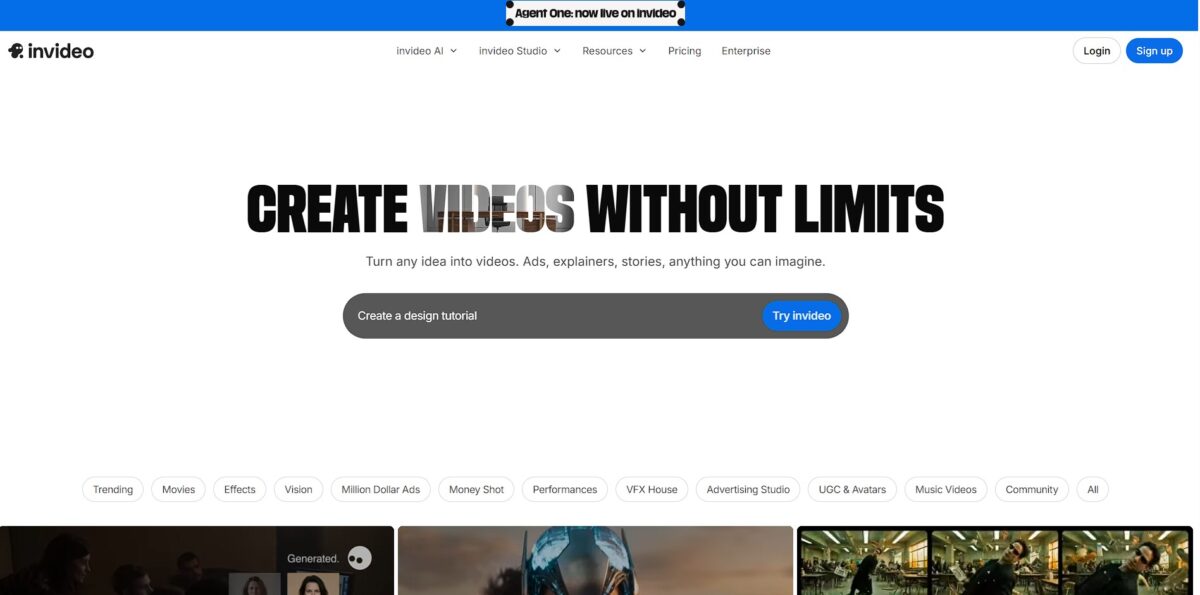
InVideo AI functions as a script-to-video assembler that skips the manual hunt for B-roll by pulling from a library of 16 million stock clips to match your text. It scans your prompt, writes a full script, and layers on an AI voiceover that sounds human enough for YouTube explainers but might struggle with brand-specific jargon. While it automates 80% of the production grind in minutes, you still need to step in for the final 20% to swap clips that don’t quite fit your vibe. I noticed it works best when you provide a highly specific brief rather than a vague one-liner. This matters because it shifts your role from a tedious editor to a creative director who fine-tunes a nearly finished draft. Treat it as a first-draft engine rather than a “set it and forget it” solution.
How to start using InVideo?
Start by creating an account on the InVideo AI website. You can skip the tedious manual setup by using a Google or Apple login. Once inside, the interface drops you straight into a prompt box rather than a complex editing timeline. This approach is refreshing if you hate staring at empty tracks, though it feels a bit restrictive for those used to total manual control. It’s built to get you moving immediately without needing to hunt for stock assets yourself.
Type your idea into the command box. Instead of just saying “make a video,” describe your target platform, like a TikTok for beginner workouts or a YouTube explainer on channel growth. Specify the tone, voiceover accent, and background music style to narrow down the AI’s choices. Being specific about the audience helps the model pick stock clips that actually fit the vibe. This saves you from the usual hour-long crawl through generic B-roll libraries.
Hit generate and wait for the draft to assemble. The system pulls from a massive library of millions of clips to match your script beats. You’ll get a first pass that includes a voiceover, subtitles, and synchronized transitions. It’s rarely perfect on the first try, but it gives you a solid foundation to prune. Your job shifts from “creator from scratch” to “editor of a draft.”
Refine the output using simple text commands. You can type “change the voice to be more energetic” or “replace the third clip with something more urban.” If you prefer a hands-on approach, you can still open the manual editor to swap specific clips or tweak the script. It works well for rapid social media iteration, though it might struggle with very niche technical topics that lack stock footage.
Useful takeaway: handle broad changes in the “edit with AI” command box first, then dive into the manual timeline only for surgical tweaks to the timing or specific clip swaps.
Who is it for?
Social Media Managers
Move from concept to a 9:16 vertical clip for TikTok or Reels in minutes. It eliminates the hunt for B-roll by pulling from a 16M asset library. Your posting schedule stays consistent without a dedicated editor.
Faceless YouTube Creators
Generate full-length explainers using just a script or a blog URL. You skip the expensive camera gear and awkward voice recordings by using synthesized clones. That way you can scale a channel to monetization with zero physical production costs.
Small Business Owners
Turn product photos into promotional video ads without hiring a creative agency. The platform automates transitions and overlays, though the AI scripts often require a manual rewrite to sound human.
Digital Coaches
Repurpose long-form podcasts or articles into bite-sized “Tip Tuesday” carousels. It transcribes audio so you can edit the video by simply deleting text from the transcript. Your content gets a longer life across multiple platforms with minimal extra effort.
Marketing Teams
Prototype ad concepts quickly to test audience hooks before committing to a big-budget shoot. It supports rapid iteration with models like Sora 2 and Veo 3.1, though unused credits won’t roll over to the next month. You stop wasting money on polished ads that don’t convert.
Sales Reps
Create personalized video pitches for prospects using voice cloning from a 30-second sample. It adds a human touch to cold outreach without the time sink of filming individual messages. Personalized video significantly increases response rates compared to plain text emails. Stick to the “edit by typing” workflow if you hate traditional timelines; it’s the tool’s biggest time-saver.
InVideo pricing
InVideo pricing splits between credit-based limits and storage caps, forcing a choice between quick social clips and heavy-duty 4K production. The tiered structure scales from hobbyist testing to high-volume agency needs.
You get a small batch of AI credits that resets every Monday, with watermarked exports. This works for testing the script-to-video logic but stays useless for professional publishing. Still, it lets you verify the AI’s B-roll selection before committing cash.
Provides 190 credits monthly and 100 GB storage. It removes watermarks and exports in 1080p, making it the entry point for YouTubers who need clean b-roll. The 190-credit cap can disappear quickly if you iterate on long-form scripts, so be precise with your initial prompts.
Bumps you to 1,000 credits and 300 GB storage and opens up every model plus the Pro and Ultra agents. This plan targets creators who generate AI footage every week. By contrast, Basic only gets the Lite agent and a limited model list.
Triples the allowance to 3,000 credits with 800 GB storage, 4K export and the lowest cost per credit for high-frequency brands. Choose the Basic plan if you only publish to social media; the jump to Ultra is only worth it if you strictly require 4K or generate clips daily.
InVideo key features
Convert static scripts into multi-scene drafts using the text-to-video agent
You provide the prompt, and the AI selects b-roll from a 16-million-asset library while writing the script and recording the narration. While the first draft is often generic, it eliminates the blank-canvas phase for content marketers. The pre-production cycle shrinks from hours to minutes.
Adjust scenes and media through the natural language “Magic Box.” Instead of dragging clips on a timeline, you type commands like “replace the cat with a snow leopard” or “change the voiceover to a British accent.” It occasionally interprets complex layout requests literally, sometimes requiring a manual fix in the advanced editor. Even so, non-editors can make professional changes without learning keyframes.
Maintain visual consistency across client projects with dedicated brand kits
You upload logos, color palettes, and fonts once so every generated video follows your style guide automatically. This prevents the “AI look” from clashing with your established business identity. No more manually re-skinning every text overlay and transition.
Scale narration using AI voice cloning and a 50-language library
You can upload a 30-second sample of your own voice to narrate every video, which helps build personal authority without constant recording sessions. The trade-off is that the AI still stumbles on technical jargon or unusual handles. Why this matters: you can localize a single campaign for global audiences while keeping the same vocal personality.
Orchestrate high-end models like Veo 3.1 and Sora 2 from a single dashboard
Rather than managing five separate subscriptions, you switch between different video engines depending on whether you need realistic physics or quick social snippets. The more advanced models drain credits faster, so watch your budget, but you get the latest frontier tech without the fragmentation headache.
Build consistent cinematic storyboards using the Vision agent
You define your characters and locations once, and the AI maintains those references across every frame of your treatment. This solves the common pain point of AI characters looking like different people between shots. A single line of text becomes a usable visual guide for filmmakers or ad agencies.
InVideo Pros & Cons
Pros
InVideo AI bundles heavyweights like Sora 2 and Veo 3.1 into a single interface for a fraction of their individual subscription costs. You can skip the tedious manual hunt for B-roll because the AI semantically scans your script to pull matching clips from a 16-million-asset library. This automation turns a rough concept into a formatted 9:16 vertical clip for TikTok or Reels in about five minutes. That matters because it allows creators to maintain a daily posting schedule without touching a complex timeline. While the AI scripts feel formulaic, they provide a solid visual baseline that you can refine using text-based editing commands. The “Angles” tool is particularly handy for generating different perspectives of a single image to keep scenes dynamic. Use it as a rapid-drafting engine to get 80% of the work done instantly.
Cons
The platform consumes your generation credits even if the output is unusable, and there is no refund policy for those glitches. AI scripts often sound generic and require heavy manual rewriting to feel authentic or unique. I noticed that text-based editing commands fail about 25% of the time, forcing you to retry the same instruction. Unused credits don’t roll over to the next month, which penalizes occasional users who don’t hit their full quota. This trade-off means you get lower costs but less precision compared to manual editing software. Character consistency remains a challenge for longer narratives despite the “Looks” and “Boards” features. Avoid using it for niche technical topics where the stock library might suggest irrelevant footage.
Use InVideo if you want…
- Convert blog posts into social-ready video clips instantly.
- Automate B-roll selection using intelligent semantic script analysis.
- Scale YouTube content production without showing your face.
- Access millions of premium stock assets in one workflow.
- Generate human-sounding AI voiceovers for global marketing campaigns.
- Turn raw scripts into polished video drafts within minutes.
- Eliminate manual footage searches with precise AI matching.
- Maintain a consistent daily posting schedule across all platforms.
InVideo alternatives


InVideo Reviews
InVideo AI is a massive time-saver for short-form social clips, though the AI-generated scripts often need a heavy human touch to lose that generic corporate feel. The B-roll selection is usually spot-on, but be ready to burn through credits quickly if you need multiple rounds of revisions.
The credit system feels a bit like a trap since every minor edit or regeneration drains your balance without warning. While it’s great for getting a first draft down in minutes, the lack of a refund policy and the steep price jump for professional use make it a risky investment for small creators.
I love that I can just drop a link or a prompt and get a usable video draft immediately without touching a complex timeline. However, it still struggles with specific brand guidelines and the character consistency isn’t quite ready for high-end client work yet.
FAQ
Can I use my own voice in InVideo AI videos?
Yes, InVideo supports custom audio uploads, allowing you to record a voiceover externally and upload the file to be synced with the AI-generated visuals.
Does InVideo AI support Sora 2 and Google Veo 3.1?
Yes, InVideo bundles access to both Sora 2 and Google Veo 3.1 generative models, allowing you to use high-end video engines within a single interface.
What languages are supported for AI voiceovers?
InVideo supports over 50 languages for AI voiceover generation, including auto-translated subtitles and localized narration for global audiences.
Is the stock footage licensed for commercial use?
Yes, all assets from the 16-million-item stock library, including iStock and Storyblocks, are licensed for commercial use under the platform subscription terms.
What is the maximum export resolution for InVideo AI?
The maximum resolution depends on your plan, with the Free plan adding a watermark, the Basic and Pro tiers offering 1080p exports, and 4K on the Ultra plan and above.
Can I edit the video after the AI generates the first draft?
Yes, you can use the Magic Editor to make changes using natural language commands or use the traditional timeline editor for manual adjustments to scenes, media, and text.
Does InVideo offer an API for video generation?
Not as a classic API plan; instead, invideo MCP lets AI assistants like Claude, ChatGPT or Cursor drive the editor and generate videos, with generation billed to your invideo credits.
Similar tools
 AIAIAll-in-one AI studio that puts Veo, Sora, Kling, Seedance and other models behind one credit balance for video, images, music and voice.
 ToMoviee AIWondershare's AI creative studio that turns text prompts and images into short videos, pictures, music, sound effects and voiceovers.
 Morph StudioBrowser AI video studio that runs Seedance, Kling, Veo and its own style transfer model, with a storyboard canvas for multi-shot clips.