

MindVideo AI
Video GenerationUpdated October 5, 2026
MindVideo AI is a 4K video aggregator that turns text and images into cinematic clips using top-tier models.
We may earn a commission when you sign up through our links. It does not affect our reviews.
What is MindVideo AI?
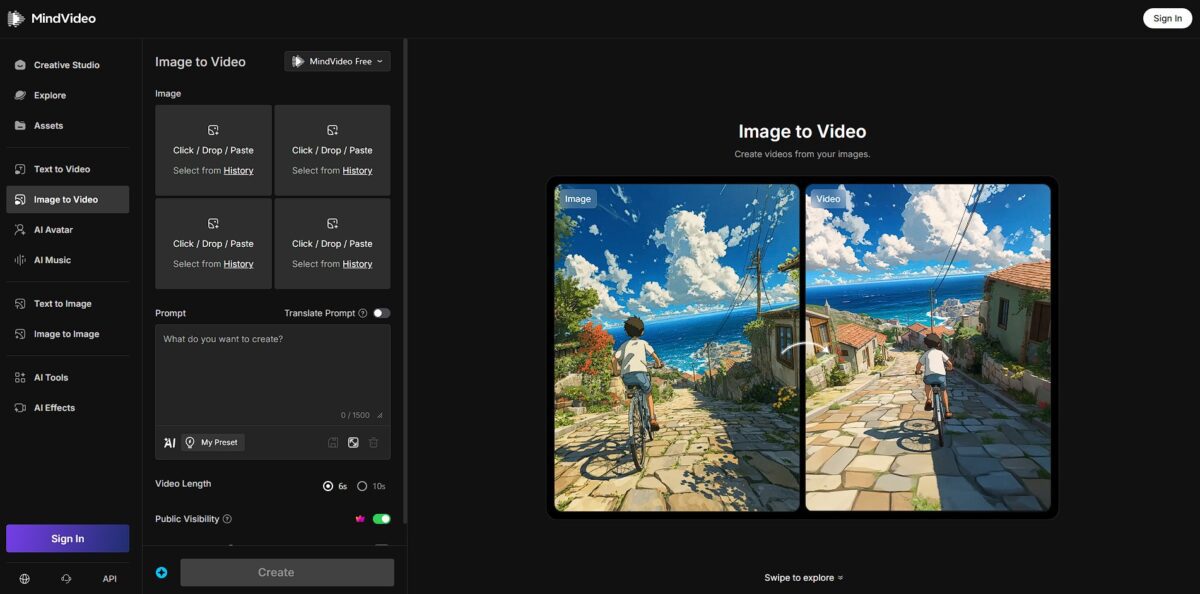
MindVideo AI acts as a browser-based aggregator that lets you generate 4K video by tapping into different backend models like Kling, Luma, and Hailuo without jumping between tabs. It skips the learning curve of complex editors by turning text prompts or static photos into movement, like making a character in a family portrait blink or smile. While it handles social media shorts and viral “AI Hug” effects effectively, it sometimes struggles with consistent output quality depending on the specific model you choose. This matters because it gives you a single workspace to experiment with diverse visual styles—from cyberpunk to realistic—without needing your own GPU. Expect a straightforward interface that prioritizes speed over granular VFX control. Use the prompt enhancer if your first result looks generic.
How to start using MindVideo AI?
Start by heading to the MindVideo AI website to create an account. You can usually skip the lengthy forms by linking a Google account. Once in, you’ll see a dashboard that aggregates different backend models like Kling or Luma. This centralized setup means you don’t have to manage five different subscriptions to try different AI “looks.”
The main workspace centers on the prompt box. You can type a description or upload a static image to animate. If you’re starting with text, describe the lighting and camera movement specifically to avoid the generic “AI floaty” look. The model needs clear anchors, or the character’s face can morph into someone else mid-clip.
Check your credit balance before hitting generate. 4K renders consume more resources, and once the queue starts, you’re committed. I’ve noticed that simpler scenes with fewer moving parts tend to render faster and with fewer artifacts. Smaller, focused movements generally look more intentional than wide, complex action shots that can break the physics engine.
Wait for the notification that your video is ready. You can then download the 1080p or 4K file directly to your drive. The browser-based preview is fine for a quick check, but always check the full resolution for small glitches in texture or background stability. This step ensures your final social post or presentation doesn’t have distracting pixel flickering in the corners.
Who is it for?
Budget-conscious Experimenters
Accessing top-tier models like Kling or Luma usually requires multiple subscriptions, but this aggregator lets you test 4K outputs under one roof. It solves the “subscription bloat” for creators who need variety without the massive overhead.
Busy Social Managers
If you need to churn out diverse 1080p clips for TikTok or Instagram, the browser-based setup bypasses local hardware rendering delays. You can skip the GPU upgrades and let the cloud handle the heavy lifting.
Multi-model Power Users
This fits those who aren’t loyal to a single engine and want to jump between Luma and Hailuo to see which interprets a specific prompt better. It cuts out the friction of managing five different browser tabs.
Visual Storytellers on a Deadline
The image-to-video feature helps when you have a static asset but no time for manual keyframing. It turns a flat concept art piece into a moving background in seconds.
4K Content Creators
While many free tools cap you at 720p, this allows for higher resolution exports that actually look crisp on modern monitors. Higher pixel counts mean your content stands out in a crowded, blurry feed.
MindVideo AI pricing
MindVideo AI prices its tiers based on a credit system, effectively letting you pay for the specific compute time required to render 4K frames. Since the platform aggregates multiple third-party models, you aren’t stuck with one engine’s cost logic, but you do need to watch how different styles drain your balance.
You get 2 videos monthly, but they carry a watermark. This works for a quick smoke test of the interface but falls short for anything professional.
This grants 500 credits and adds 4K exports without watermarks. It is the sweet spot if you just need a few polished social clips per week without a huge commitment.
You get 1,200 credits. This allows for more frequent experimentation with different effects before settling on a final render.
This provides 3,000 credits for high-volume creators. It ensures you don’t hit a wall mid-project when trying to get a character’s movement exactly right. These tiers matter because they let you scale your spending based on the resolution and quantity of renders your workflow demands.
MindVideo AI key features
Access Kling, Luma, and Hailuo models through one browser tab
Instead of juggling five subscriptions and logins, you use a single credit pool to test which engine handles your prompt best. No more “subscription fatigue” from paying for multiple tools you only use occasionally.
Output video in 4K resolution directly from text or image prompts
Most aggregators cap at 1080p, but this lets you create assets sharp enough for desktop backgrounds or client presentations. In testing, the 4K render took significantly longer, so it’s not for quick social drafts, but you get professional-grade clarity without a local GPU.
Animate static JPG or PNG files using the Image-to-Video tool
You can upload a character portrait and use a text prompt to define movement, like making a stoic knight give a slight nod. This solves the problem of AI “hallucinating” a new face every time you start from a text prompt. Your protagonist stays consistent across different scenes.
Switch between cinematic, 3D animation, and realistic styles using preset toggles
These filters act as a “style lock,” preventing the AI from drifting into a cartoonish look when you want a gritty film vibe. The trade-off is less creative freedom, as the presets restrict how much the model deviates from the selected look. In return, your B-roll matches the aesthetic of your existing footage.
Manage your rendering history in a centralized cloud gallery
You can revisit old generations, tweak the prompt, and re-run them through a different backend model without re-uploading assets. The preview thumbnails load fast, which helps when you’re hunting for one specific clip in a pile of fifty, and a chaotic folder of downloads becomes an organized production library.
MindVideo AI Pros & Cons
Pros
MindVideo AI functions as a browser-based switchboard that lets you toggle between Kling, Luma, and Hailuo without maintaining three separate monthly bills. It renders 4K clips directly in your tab, which saves local GPU wear during long animation sessions. I noticed the interface keeps your assets organized by model, so you can compare how different engines interpret the same lighting prompt. This matters because you find the best visual style for your project without jumping between browser tabs or logins. Use this as your primary testing ground to identify which specific AI engine handles your character’s physics best before committing to a full render.
Cons
The credit system creates a layer of abstraction that makes it hard to predict exactly how many 4K frames you get for your money. Since it aggregates third-party tech, you lose the granular camera settings often found in the native interfaces of tools like Runway. There is a slight lag when switching between backend engines, as the dashboard needs to re-handshake with each external API. Convenience also costs you deep, frame-by-frame editing tools for post-generation cleanup. Skip this if you need frame-level masking or custom rotoscoping, as it is built for generation rather than fine-tuned manipulation.
Use MindVideo AI if you want…
- Transform static photos into cinematic 4K video masterpieces.
- Keep characters consistent across animated frames.
- Apply viral AI effects like Kiss and Hug instantly.
- Access top-tier models like Kling and Luma in one hub.
- Generate professional product promos with automated camera orbits.
- Create faceless social content using advanced text-to-video tools.
- Enhance storytelling with contextually synchronized AI-generated audio.
- Produce high-fidelity visuals without complex editing or technical skills.
MindVideo AI alternatives



MindVideo AI Reviews
I love having Kling and Luma in one dashboard without multiple logins, though the 4K rendering can be hit or miss depending on the backend model. It’s a huge time-saver for my social media ads since I don’t have to keep switching tabs.
The “AI Hug” effect is surprisingly fluid, but I noticed some character warping when I try to extend scenes beyond 10 seconds. It’s great for quick viral clips, but don’t expect it to replace a professional VFX suite just yet.
Being able to animate old family photos into 4K video is incredible, even if the physics occasionally glitch on complex movements. The prompt enhancer actually works, turning my lazy descriptions into something much more cinematic.
FAQ
Can I use MindVideo AI for commercial purposes?
Yes, users on paid plans typically receive commercial usage rights, allowing you to use generated videos for advertising, marketing, and corporate projects.
What AI models does MindVideo AI use?
MindVideo AI aggregates several top-tier models, including Kling AI, Luma Ray, Sora 2, and Veo 3, to provide high-quality video generation from a single interface.
Is there a limit to how many videos I can create?
While there is a free tier with limited monthly generations, paid plans offer higher limits, ranging from 30 to 80 videos per month depending on your subscription level.
Can I remove watermarks from my videos?
Yes, watermarks are removed for users subscribed to the Lite, Pro, or Max plans, while the free version includes a watermark on all exports.
Does MindVideo AI support 4K resolution?
Yes, the platform supports high-definition output up to 4K resolution, making it suitable for professional production standards and large-screen displays.
Can I generate videos from existing images?
Yes, MindVideo AI includes image-to-video capabilities, allowing you to upload static photos and animate them into dynamic clips with realistic motion.
How does MindVideo AI handle data privacy?
The platform allows users to delete their uploads and generated videos at any time, and it maintains a policy of not collecting personal information from its users.
Similar tools
 AIAIAll-in-one AI studio that puts Veo, Sora, Kling, Seedance and other models behind one credit balance for video, images, music and voice.
 ToMoviee AIWondershare's AI creative studio that turns text prompts and images into short videos, pictures, music, sound effects and voiceovers.
 Morph StudioBrowser AI video studio that runs Seedance, Kling, Veo and its own style transfer model, with a storyboard canvas for multi-shot clips.