
Photoleap
Image EditingUpdated November 12, 2026
iPhone and iPad photo editor by Lightricks that pairs layers, blending and masking with AI text-to-image, object removal and generative fill.
We may earn a commission when you sign up through our links. It does not affect our reviews.
What is Photoleap?
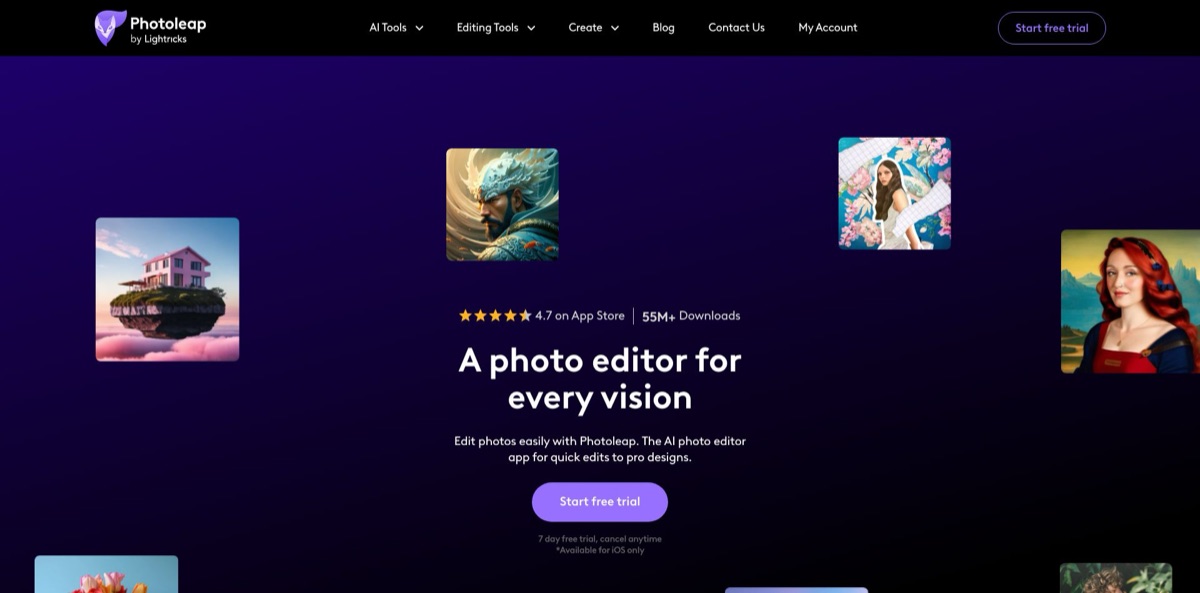
Photoleap is a layer-based photo editor and AI image generator for iPhone and iPad, made by Lightricks, the company behind Facetune and Videoleap. It launched in 2017 as Enlight Photofox and still keeps that app’s core: layers, blending modes, masking, RAW support and 16-bit editing. On top of that sit AI tools for text-to-image with more than 70 styles, object removal, automatic cutouts, AI Transform with generative fill, uncrop, colorizing, headshots and short image-to-video clips. The problem it solves is building composites, cleanups and AI art on a phone without moving files to a desktop. The weak spots are a paywall that has grown over the years, AI output that users describe as uneven, projects that live on one device only, and no Android or browser editor. Pick it if you edit mostly on iOS and want classic tools and generative AI in one app.
How to start using Photoleap?
Install Photoleap from the App Store. It needs iOS 17 or later on iPhone, iPadOS 17 on iPad, and also runs on Apple Vision; the website states that the app is available for iOS only. The interface comes in English and 11 other languages, including Spanish, German, French, Japanese and Simplified Chinese. When the app asks for access to your photo library, allow it; if your pictures do not show up later, open the iOS Settings app, scroll to Photoleap and change the photo permission there. You can start a 7-day free trial or stay on the free tools.
For a first real job, try the generator. Tap AI Tools, then Text to Image, type a prompt such as a product on a beach at sunset, and pick one of the 70+ styles, from Comic to Cinema. You can add a character by choosing a photo of yourself or a friend before generating, and set an aspect ratio so the result fits Instagram, YouTube or a phone wallpaper. The help center notes that non-subscribers get a limited number of generations and exports, so use the trial for heavier experiments.
The screen you will use most is the editor with the Layers tool at the top. Lightricks lists seven layer sources: Text, Import images, Text to Image, Draw, Stickers, Shapes and Fill, and you reorder layers by dragging their thumbnails. For cutouts, tap Cutout: Auto Cutout is selected by default, you pick the detected object, then fix the edges with the Erase and Restore brushes. AI Transform works in two modes, Custom, where you brush over an area and describe the change, and Props, a set of ready-made outlines; the latest updates added Generative Fill to this tool.
To finish, tap the checkmark at the top right. On the Save screen you choose size, quality and file type, and Lightricks recommends PNG for cutouts so transparent areas stay open. Animations export as a video, Live Photo or GIF. Projects are stored only on the device where you made them, and the help center says they cannot be moved to another device, so export finished work to your camera roll or cloud storage. Pro tools carry a crown icon: you can try them, but saving a project that uses one requires a purchase.
Who is it for?
Social media creators
You need memes, trend edits and eye-catching posts fast, straight from the phone where you shoot them. Photoleap combines AI filters, text, stickers and collage layouts with a generator for custom backgrounds and scenes. You go from idea to post without exporting files between three apps.
Mobile digital artists
Double exposures, surreal composites and blend-mode experiments are the original reason people used Photofox. Layers with masking, blend modes, transparency and perspective transform give you real compositing on a phone or iPad. Long-time App Store reviewers describe thousands of hours spent building art this way.
Small business owners
You want product shots on clean backgrounds, simple flyers and posters, without paying a designer for every variation. Cutout, AI Background and AI Transform let you swap scenery or replace distracting objects in a few taps.
Job seekers and professionals
A dated profile photo hurts on LinkedIn or Slack, and a studio session costs time and money. AI Headshots under AI Edits turns an uploaded photo into a headshot in an industry style you pick. Expect to review the results carefully, since some users report fake-looking hair and skin.
Hobbyists exploring AI art
You want to try ideas quickly without counting tokens. One long-time subscriber describes the generator as a fast playground for concepts that later get refined in more advanced image models. The 70+ styles cut down the prompt engineering for casual use.
Families with old photos
Faded black-and-white prints and blurry scans are hard to fix by hand. AI Colorize, AI Enhance and Animate bring color, sharpness and gentle motion back to old pictures. You end up with shareable versions for relatives in minutes.
Photoleap pricing
Photoleap is freemium. The app is free to download, free tools can be saved and exported without a purchase, and paid tools, which Lightricks calls Pro or VIP and marks with a crown, require a purchase before you can save a project that uses them. There is no public price table on photoleapapp.com: you see prices at the in-app paywall or in the Lightricks web checkout, and they vary by app store and region. The help center lists four package types, and each one gives the same full set of Pro tools; only the length of access differs. Status as of November 11, 2026:
All free tools with unlimited projects and exports, Pro tools to try but not save, up to 3 layers per project according to the help center, and a limited number of AI generations and AI exports.
Offered on the website and in the app with cancel anytime wording; it converts into a paid, auto-renewing subscription unless you cancel before it ends.
price shown in the app. Each renews automatically for its period and includes all Pro tools, 12 layers, and updates and new features while the purchase is active. The US App Store lists Photoleap in-app purchases at $6.99, $7.99, $8.99, $35.99, $37.99, $39.99 and $59.99, named Unlimited access or Photoleap Subscription, without stating which billing period each one covers.
price shown in the app. Lightricks describes it as a single charge for lifetime access to the Pro tools.
priced per bundle, separately from Pro. The avatar page promises 50% off each bundle when you start a Photoleap free trial.
Subscriptions bought through Apple stay tied to your Apple ID and are refunded by Apple at its discretion via reportaproblem.apple.com. Purchases made on photoleapapp.com are billed by Lightricks, managed in your web account, and work across platforms with the same login.
Photoleap key features
Layers and blending: You stack up to 12 layers on Pro (3 on the free plan) from text, imported photos, Text to Image results, drawings, stickers, shapes or color fills. Blend modes, transparency and perspective transform let you superimpose images and build double exposures, and masking is built into nearly every tool with quick-select brushes. That gives you desktop-style compositing on a phone.
Text to Image: You describe a scene, choose from more than 70 styles, and set an aspect ratio for the platform you post to. A character option places a face from your own photo into the generated scene. The result lands in the editor as a layer, so you can retouch, add text or combine it with other images right away.
AI Transform with Generative Fill: In Custom mode you brush over part of a photo and type what it should become, while Props drops pre-made object outlines into the image. The tool generates several options and you pick one, and the app also saves a before-and-after video.
Cutout, Remove and background tools: Auto Cutout detects objects, and Erase and Restore brushes refine the edges before you export a transparent PNG. The Remove tool erases people, text, timestamps and logos when you swipe over them, while AI Background and AI Uncrop replace or extend the scene. Product shots and travel photos get cleaned up without manual cloning.
Image to video and Animate: The AI image-to-video tool turns a photo into a 3, 5 or 7 second clip from a motion description and returns 4 versions to choose from. The older Animate tool lets you select an area, set the direction and speed of motion, and export as video, Live Photo or GIF. Still images become short social clips without a video editor.
AI portrait tools: AI Headshots creates professional headshots in an industry style, and AI Avatars builds themed avatar sets from 10 to 20 uploaded photos, delivered by email. Face swap, FaceMix, hairstyle, tattoo, costume and gender-swap filters cover the entertainment side. Results vary with the source photo, so feed it clear, well-lit selfies.
Pro editing basics: The App Store listing promises RAW support, 16-bit image depth for tonal adjustments, custom canvas sizes and auto-saved sessions. Tonality, color, grain, vignette, fade and structure controls sit next to film, black and white and duo presets, plus AI Enhance and an upscaler for sharper output. You can do serious corrections before or after any AI step.
Photoleap Pros & Cons
Pros
Photoleap combines a real layer editor with generative AI in one iOS app. Layers, blend modes, masking, RAW import and 16-bit editing put it well above typical filter apps, and one long-time user calls it a favorite next to Photoshop and Lightroom for editing on the go. The text-to-image generator, AI Transform, cutouts and image-to-video sit inside the same project, so you can generate a background, drop in a cutout and add text without exporting anything. A four-year subscriber notes that the generator works without credit counting, which suits idea exploration. Lightricks still ships updates, with version 2.124 released in August 2026, and the US listing averages 4.7 stars from about 138,000 ratings. Build your composite with layers first, then use AI tools on the parts that need them.
Cons
The app runs on iPhone and iPad only, with no Android build and no browser editor. Many tools that long-time users remember as free, such as blur and cutout, now sit behind the Pro crown, and an App Store reviewer reports that the free layer cap dropped from three to two. AI quality draws mixed feedback: unrealistic headshots, prompts that get misread or refused, and repeated something went wrong errors. Projects stay on one device and disappear if you delete the app. Billing complaints include renewals users did not expect and older lifetime purchases that stopped working. Export important projects regularly, set a reminder before the trial ends, and keep your receipts.
Use Photoleap if you want…
- Generate AI images from text prompts on iPhone.
- Combine several photos with layers and blend modes.
- Erase photobombers, text and timestamps from snapshots.
- Replace parts of a photo with generative fill.
- Turn still photos into short AI video clips.
- Cut out subjects and save them as transparent PNGs.
- Create AI headshots and avatars from your own selfies.
- Colorize and sharpen old family photos on your phone.
- Design memes, flyers and social posts without a desktop.
Photoleap alternatives



Photoleap Reviews
App Store users who have edited with Photoleap for years praise its layered editing and versatility, with one calling it a favorite alongside Photoshop and Lightroom for work away from the computer, though several say tools that used to be free now require Pro.
A four-year subscriber values the AI generator as a fast idea playground without credit or token limits, while admitting the images are not production-ready and get refined in other engines.
Several reviewers found the AI results hit or miss, from headshots with fake-looking hair and skin to prompts that were ignored, and one trial user hit repeated something went wrong errors before giving up.
Billing is a recurring complaint: users describe yearly renewals they did not expect, refunds that were refused, and one-time Pro purchases from years ago that the app no longer recognizes.
An iPad Pro subscriber who keeps more than 1,200 projects praises the improved Enhance and AI tools but criticizes navigation changes, the removal of the Target tool and erratic behavior of the Remove, Blur and Transform tools.
FAQ
Is Photoleap free?
The app is free to download, and anything made with the free tools can be saved and exported without paying. Pro tools, marked with a crown, can be tried but need a subscription or one-time purchase to save, and AI generations are limited for non-subscribers.
Is Photoleap available on Android or the web?
No. The official site says Photoleap is available for iOS only, and the App Store build supports iPhone, iPad and Apple Vision. The website is used for buying a subscription, managing your account and ordering AI Avatars, not for editing.
How do I cancel a Photoleap subscription or free trial?
If you subscribed through Apple, open iPhone Settings, tap your name, then Subscriptions, select Photoleap and tap Cancel Subscription. For purchases made on the website, log in to your account on photoleapapp.com and cancel there. Deleting the app does not cancel billing.
Can I use Photoleap images commercially?
Lightricks says you can use projects however you like as long as you edit your own images or images you have permission to use. For content made with AI tools it does not offer legal advice and points you to its Terms of Use and AI Terms of Use.
Can I continue a project on another device?
No. Projects are stored in the app on the device where you created them and cannot be transferred, so export finished work to your photo library or cloud storage before switching phones.
Does a Pro purchase work on my iPad too?
Yes, if you bought it through Apple and sign in with the same Apple ID on the other iOS device. Purchases made directly on photoleapapp.com are tied to your Lightricks login instead and work across platforms.
How many layers can I use in Photoleap?
The help center states 3 layers per project on the free version and 12 with Pro. A 2025 App Store review reports that the free limit was reduced to 2, so check the current cap in the app.
What data does Photoleap collect?
According to its App Store privacy label, Lightricks may collect photos, contact details, identifiers, usage data and purchase history linked to your identity, and contact info and identifiers may be used for tracking across other companies’ apps. Review the privacy policy before uploading sensitive photos.
Similar tools
 HamaFree browser-based AI eraser that removes people, objects, text and blemishes from photos with a brush, plus an inpainting API for developers.
 BgEraserBrowser-based AI background remover that turns up to 20 photos per batch into transparent PNGs without an account, plus offline apps for
 ImgkitsBrowser-based set of AI photo tools for background removal, object cleanup, upscaling, old photo restoration, image generation and image-to-video.