
TryVeo3.ai
Video GenerationUpdated October 5, 2026
TryVeo3.ai is a cinematic AI generator transforming text and images into lifelike HD videos with synchronized audio.
We may earn a commission when you sign up through our links. It does not affect our reviews.
What is TryVeo3.ai?
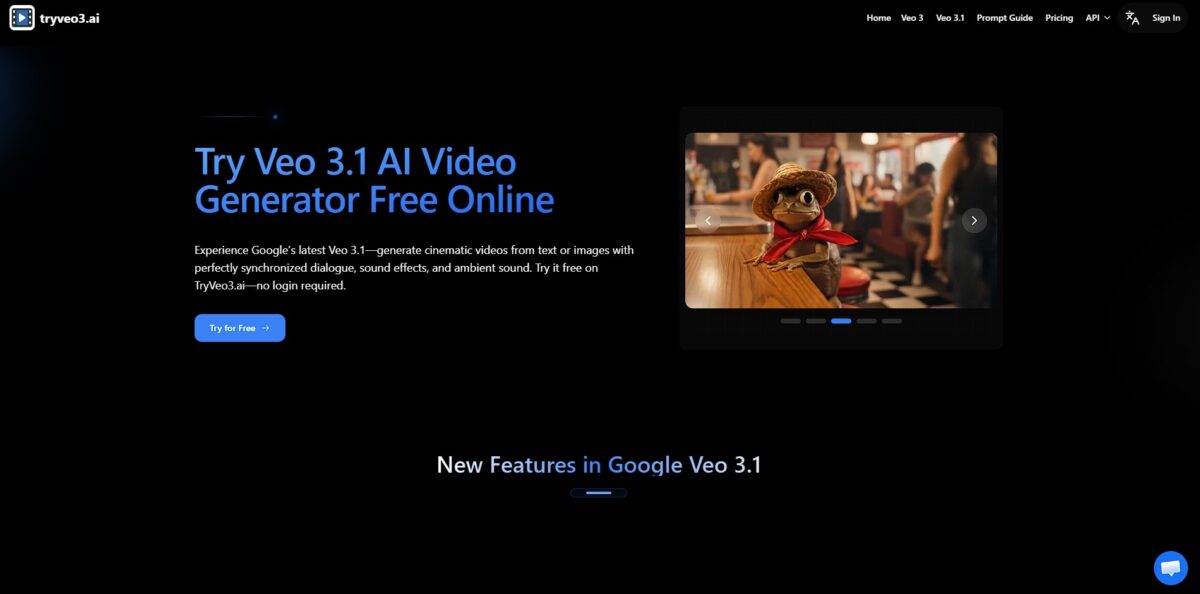
TryVeo3.ai acts as a lightweight web interface for Google’s Veo 3 model, stripping away the friction of complex setups to generate cinematic video clips from text or images. It handles the difficult stuff like synchronized audio and consistent lighting, meaning you can stop worrying about mismatched sound effects or flickering textures that usually break the immersion. While it’s great for rapid prototyping or social content, it limits you to shorter 8-second bursts rather than full-length features. This matters because it turns a day-long rendering project into a ten-second experiment you can run between emails. I noticed the motion physics—how fabric moves or water splashes—feel significantly more anchored than earlier generators. Use it to quickly visualize a script beat before committing to a heavy production pipeline.
How to start using TryVeo3.ai?
Skip the usual cloud console headache. You don’t need to configure project IDs or link a credit card to a developer account just to see if the physics engine handles a walking cat. Load the site and choose between the standard Veo 3 model for detail or the Fast version for quick visual prototyping. That takes the financial friction out of testing a creative spark. If you’re just messing around, the Fast model saves you time during the iteration phase.
The prompt box is your primary control surface. Type a description of your scene, focusing on the subject, specific lighting, and how the camera should move. If you don’t specify camera motion, the AI often defaults to a static shot, which can feel a bit flat. Mention a “slow push-in” or a “tracking shot” to get that cinematic depth without needing a film degree. Specific camera terms keep the AI from guessing your intent.
If you have a specific character or product in mind, upload a reference image instead of relying solely on text. The image-to-video workflow helps maintain visual consistency, which is often a struggle when generating multiple clips for the same project. It’s excellent for keeping a character’s face the same across different shots, though it can sometimes struggle with extremely complex backgrounds. You get a predictable visual anchor for your story.
Hit generate and wait for the render to complete. You can preview the 720p output immediately to check if the motion looks natural or if the “uncanny valley” is creeping in. If the scene hits the mark, use the built-in upscaler to bump the resolution to 1080p for a sharper finish. That way you verify the motion before committing to a higher-resolution render.
Start with the Veo 3 Fast model for your first five prompts to learn how the model reacts to your specific writing style without wasting time.
Who is it for?
Solo Content Creators
Skip the complex Google Cloud setup to generate HD video clips directly from text or images. This bypasses the need for technical API knowledge or linking credit cards to developer consoles. The technical friction between a creative idea and a rendered file largely disappears.
Indie Filmmakers
Draft cinematic sequences and test camera movements without a physical set or expensive pre-visualization software. The tool handles physical interactions and lighting better than basic generators, making it useful for rough storyboards. This lets you visualize complex scenes before investing in production.
Social Media Managers
Create lifelike video backgrounds or atmosphere shots that look realistic rather than like generic AI art. The motion holds together well in short bursts, which is perfect for high-retention social loops. Quality visuals translate into longer watch times for your posts.
Concept Artists
Use text prompts to expand static environment sketches into moving landscapes. It works well for world-building and establishing tone, though it is less ideal for precise character consistency across many shots. Seeing your world in motion helps you identify flaws in composition early.
Marketing Specialists
Generate professional product teasers by converting script snippets into visuals without hiring a full production crew. This moves the workflow from days of editing to minutes of prompting. Faster iteration means you can test multiple visual hooks for the same campaign.
Takeaway
TryVeo3.ai fits if you need the cinematic realism of Google’s model without the headache of a developer-centric interface.
TryVeo3.ai pricing
Google usually locks its best video tech behind a $250 monthly wall, but this platform fragments that cost into more digestible chunks. You can start with a zero-friction trial that requires no credit card or account creation. It is useful for verifying that a specific text prompt actually generates the physics you expect before spending a dime.
It’s a good way to check whether a character’s face stays consistent during a 5-second pan.
This grants 100 credits, enough for roughly 50 lower-resolution draft clips.
You get 1,000 credits for about 500 clips, which works well if you are iterating on a full social media campaign.
This top tier provides 3,000 credits and adds support for “Quality” models that render 1080p video with synchronized environmental audio.
Included only in paid plans, meaning you can’t legally use free trial renders for client ads. This structure avoids the “all-or-nothing” subscription trap of official Google Cloud tiers.
TryVeo3.ai key features
Generate 8-second cinematic clips from text or static images using the Veo 3.1 engine
You can animate a still portrait into a speaking character or build a scene from a raw script. This provides a quick way to test visual concepts without hiring a production crew.
Sync ambient sounds and dialogue directly to on-screen movements during the generation process
This stops the frustration of trying to time footsteps or lip movements in a separate editor after the video is rendered. It saves hours of post-production audio mapping for social media content.
Maintain visual consistency by uploading up to three reference images to guide the AI
While some generators drift and change a character’s shirt or hair color between shots, these references act as a stylistic anchor. This matters because it allows for actual storytelling where the protagonist looks like the same person in every clip.
Direct the virtual lens with explicit camera commands like dolly in, whip pan, or drone sweep
Instead of flat, static shots, you can request a “slow tilt up” to reveal a character’s scale or a “handheld shake” for a documentary vibe. This gives you director-level control over the emotional weight of a scene.
Stitch multiple clips together using the chain tool to build longer narrative sequences
You can feed the last frame of one video into the next prompt to ensure a smooth transition between actions. This breaks the “short loop” limitation found in basic AI models.
Access the Google Veo 3.1 model through a simplified interface without needing a Google Cloud billing account or credit card. It bypasses the complex technical setup of Vertex AI, making high-end rendering available to hobbyists and small teams instantly. This opens up professional-grade video tools for those who just want to experiment with 4K motion.
TryVeo3.ai Pros & Cons
Pros
TryVeo3.ai skips the friction of traditional AI subscriptions by offering immediate access to Google’s Veo 3.1 model without requiring credit card details or even a login for initial testing. It handles physics with impressive logic, meaning falling objects bounce realistically instead of melting into the floor. I noticed the audio-visual sync stays tight, making it a fast way to generate “talking head” social clips where mouths actually match the phonemes, with no tedious manual foley work or external lip-syncing tools. Use the “Fast” model for rapid storyboarding before committing credits to the “Quality” render.
Cons
The free version limits your creative freedom by locking videos behind personal-use-only rights, forcing a paid upgrade for any commercial YouTube or ad project. Resolution on the entry-level plan caps at 720p, which looks soft on modern monitors compared to native 4K outputs. While motion is generally fluid, complex prompt requests can still result in spatial drift where backgrounds warp slightly during long pans. The trade-off for the “no sign-up” convenience is a lack of persistent project history for guests. Stick to the paid plans if you need 1080p resolution and the legal clearance to use your clips in a client portfolio.
Use TryVeo3.ai if you want…
- Transform text prompts into lifelike HD cinematic videos.
- Animate static images with fluid, realistic motion.
- Create high-quality video content without a production crew.
- Generate professional b-roll for marketing projects instantly.
- Craft visually stunning stories using advanced AI physics.
- Produce high-fidelity visuals for social media campaigns.
- Experiment with creative video concepts at scale.
TryVeo3.ai alternatives
 Kling AIRead review →
 Runway Gen-4Read review →
 Hailuo AI (MiniMax)Read review →
 Wan 2.5Read review →
 PixVerseRead review →
 PikaRead review →
TryVeo3.ai Reviews
The 4K cinematic output is stunning and the physics-based motion feels incredibly grounded, but the 8-second limit makes narrative storytelling a bit of a puzzle. It’s a powerful prototyping tool, though the lack of a mobile app is a missed opportunity for on-the-go creators.
I’m blown away by the native audio sync and realistic textures, which save me hours of post-production work. However, complex human interactions still trigger the occasional visual glitch that requires a few regenerations to fix.
The no-sign-up access is a breath of fresh air for testing ideas quickly without a commitment. It handles nature and lighting better than any competitor, even if the $99.90 Ultra plan feels steep for anything beyond professional use.
FAQ
Does TryVeo3.ai support audio generation?
Yes, TryVeo3.ai utilizes Veo 3 technology to generate synchronized native audio, including dialogue, sound effects, and ambient noise, directly from your text prompt.
What is the maximum resolution for videos on TryVeo3.ai?
TryVeo3.ai supports high-definition video output, including 1080p and upscaling to 4K resolution for professional-grade clarity.
Can I use my own images to generate videos?
Yes, the platform supports image-to-video generation, allowing you to upload a reference image to guide the style, composition, and character consistency of your video.
What aspect ratios are available?
TryVeo3.ai supports multiple aspect ratios, including cinematic 16:9 for wide screens and native 9:16 vertical format for mobile-first platforms like YouTube Shorts and TikTok.
How long can a single video clip be?
The model can generate video clips up to 8 seconds long, which can then be stitched together or extended to create longer narratives.
Do I need a credit card for the free trial?
No, TryVeo3.ai offers instant access to a Veo 3 free trial without requiring any billing information or a linked credit card.
Can I control specific camera movements in my prompts?
Yes, you can specify cinematic techniques such as tracking shots, low angles, and close-ups directly in your text instructions for precise creative control.
Similar tools
 AIAIAll-in-one AI studio that puts Veo, Sora, Kling, Seedance and other models behind one credit balance for video, images, music and voice.
 ToMoviee AIWondershare's AI creative studio that turns text prompts and images into short videos, pictures, music, sound effects and voiceovers.
 Morph StudioBrowser AI video studio that runs Seedance, Kling, Veo and its own style transfer model, with a storyboard canvas for multi-shot clips.