
Viddo AI Video Generator
Video GenerationUpdated October 5, 2026
Viddo AI is an affordable, all-in-one generator transforming text and images into cinematic 4K videos using advanced models.
We may earn a commission when you sign up through our links. It does not affect our reviews.
What is Viddo AI Video Generator?
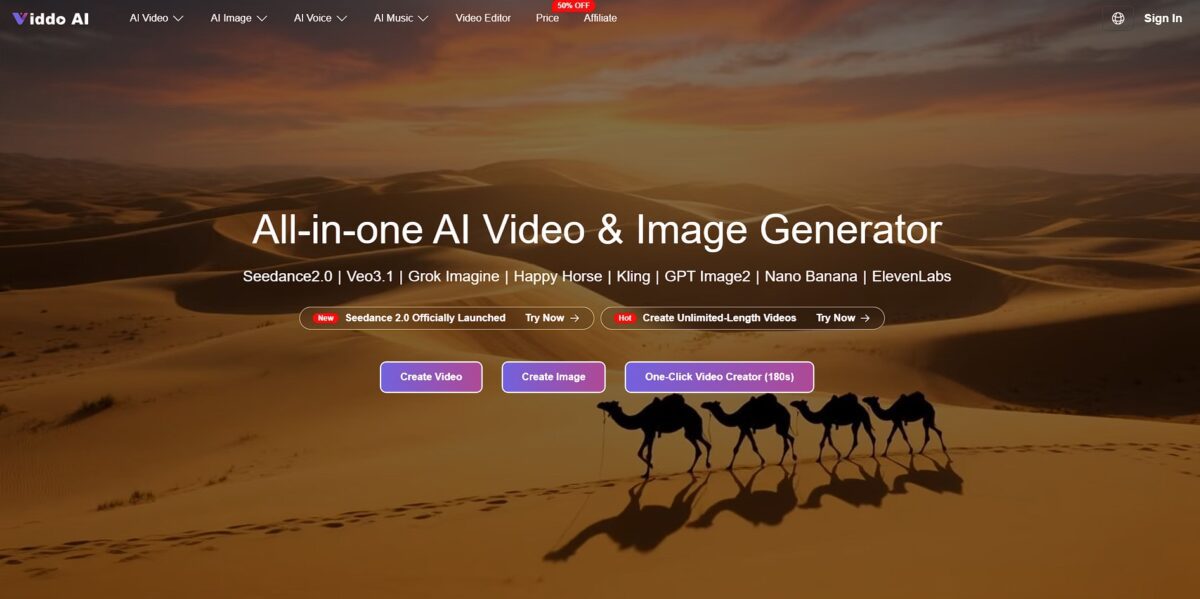
Viddo AI functions as a pragmatic entry point for creators using Google’s Veo 3.1 model to animate static images or scripts without a massive upfront investment. While many platforms hide their best tech behind expensive monthly walls, this tool breaks costs down to a per-video level, letting you experiment with cinematic 4K visuals for a few cents. It excels at interpreting the “vibe” of a scene to apply motion that actually makes sense—like realistic water ripples or clothing shifts—rather than just sliding pixels around. This matters because it removes the technical barrier for researchers or social editors who need high-resolution visual anchors for their stories but lack a Hollywood budget. I noticed it handles complex 1080p rendering quite efficiently, though the free version’s watermark is a significant hurdle for final exports. Use it as your sandbox for testing high-end prompts before committing to a full production plan.
How to start using Viddo AI Video Generator?
Head to the Viddo AI site and skip the heavy registration forms. You can jump in quickly using a Google account or a basic email sign-up. This gets you into the dashboard where you can see your credit balance immediately. You don’t have to set up a whole new profile just to test a single prompt.
The interface gives you a choice: start with a text prompt or upload a reference photo. If you have a specific character design or a product shot, the image-to-video path helps the AI anchor its generation. Simple, descriptive sentences work better than technical jargon here. Detailed prompts prevent the AI from filling gaps with random, unrelated background elements.
Once your prompt is ready, choose your model settings. Since Viddo taps into the Veo 3.1 architecture, you can aim for 4K output if your plan allows it. Hit generate and wait for the server to process the request. The wait time varies based on current traffic, but you get a progress bar to track the rendering. This gives you a finished clip without needing a dedicated GPU at home.
The results appear in your personal gallery for review. You can download the video directly or tweak the prompt for a second attempt. It’s an iterative process, so don’t expect a perfect cinematic masterpiece on your first try. Refining the motion descriptions in your prompt usually solves issues with physical consistency.
Who is it for?
Budget-Conscious Creators
This fits anyone needing to test Google’s Veo 3.1 model without committing to a massive monthly subscription. It bridges the gap between free trials and pro-tier commitments. You can experiment with cinematic motion without draining your project funds.
Content Generalists
If you juggle multiple social accounts, this tool handles the repetitive task of turning static assets into video posts. It saves hours of manual keyframing by automating the animation of flat product photos. Why this matters: You spend less time in a timeline and more time on strategy.
Indie Filmmakers
Useful for quick visual concept tests or “motion storyboards” to show a crew what a specific shot angle should feel like. It struggles with complex character anatomy, so it’s better for atmosphere than dialogue scenes, but it’s a fast way to communicate visual intent.
Ad Experimenters
Perfect for those running rapid-fire A/B tests on TikTok or Instagram Reels. You can generate several variations of a script for the price of a single stock clip. Volume helps you find winning hooks faster.
Social Media Managers
Those tired of the engagement dip that comes with posting static images. Viddo adds enough movement to stop the scroll without requiring a dedicated motion design degree. Why this matters: It turns your existing photo library into dynamic video content.
Viddo AI Video Generator pricing
Viddo AI breaks away from the rigid monthly subscription trap by offering a more granular, credit-based approach to Google’s Veo 3.1 model. Instead of paying for a massive bundle of features you might not use, you buy specifically what you need to render cinematic 4K visuals.
$7.99 per day for 45 credits.
$9.90 per week for 40 credits.
$29 per month for 150 credits.
$89 per month for 400 credits.
Roughly $0.98 per video.
The daily and weekly options work well for one-off projects or quick social campaigns where a full monthly commitment feels wasteful. I noticed the cost per video drops significantly as you scale up, which helps if you’re churning out a high volume of b-roll. That lowers the financial risk of experimenting with different prompts. The catch is credit expiration on shorter plans, so timing your renders is key.
Viddo AI Video Generator key features
Animate static images into 8-second clips using the Veo 3.1 engine
This skips the frame-by-frame manual labor of traditional animation software. It handles the edges of objects better than previous models, preventing that weird “melting” look. Why this matters: you can turn a single Midjourney export into a usable B-roll clip in under a minute.
Select between 16:9 landscape or 9:16 portrait ratios during the prompt stage
You don’t have to waste time cropping and losing detail in post-production for TikTok or Shorts. The trade-off is that portrait mode sometimes struggles with wide horizontal pans. Why this matters: your content stays native to the platform it was built for.
Maintain character features across different scenes by uploading a reference image
This solves the nightmare of your protagonist looking like a different person in every shot. It works well for simple faces but can glitch on complex accessories like glasses. Why this matters: it allows you to build a cohesive narrative instead of just a collection of random clips.
Generate environmental sound effects and ambient noise that syncs to on-screen action
You won’t need to spend an hour digging through stock audio libraries for the sound of a closing door. While the sync is tight, the audio depth can feel a bit flat compared to a dedicated DAW. Why this matters: you get a watchable draft with a soundscape in one click.
Control specific camera movements like “dolly zoom” or “slow pan” through text instructions
This lets you direct the AI like a real cinematographer instead of just hoping for a cool angle. I noticed the “handheld” prompt adds a subtle shake that makes digital renders feel more organic. Why this matters: it gives you intentionality over the visual storytelling.
Upscale your final renders to 4K resolution for large-screen viewing
This removes the “pixelated” look common in web-grade AI generators. The render time increases significantly, but the texture clarity is professional enough for client presentations. Why this matters: your work doesn’t look like a low-res social media meme.
Viddo AI Video Generator Pros & Cons
Pros
Viddo AI aggregates multiple heavy-hitting engines like Sora and Veo 3 into a single interface. This consolidation ends the frustration of paying for five separate subscriptions just to see which model handles a specific physics prompt best. The platform offers a credit refund if a generation fails to meet expectations, which is a rarity in the credit-hungry AI space. It automates 9:16 vertical resizing for TikTok and Reels without requiring manual frame-by-frame adjustments. Solo creators can keep a daily posting schedule without touching a complex video editor. Use Viddo AI to test different AI models side-by-side for a single project without blowing your monthly budget.
Cons
The “all-in-one” approach means you lose deep, granular control found in native platforms like Runway or Luma. While it excels at automating B-roll, the AI-generated subtitles sometimes require manual spelling fixes for niche technical jargon. Character consistency remains a gamble across longer, multi-scene narratives since the tool focuses on speed over complex seed management. In exchange for this accessibility, you go without advanced timeline tools for professional color grading or precise audio layering. This matters because a polished marketing clip might still need a final pass in a traditional editor to look truly professional. Stick to shorter, single-scene generations to ensure the highest visual stability.
Use Viddo AI Video Generator if you want…
- Transform static photos into viral social media clips instantly.
- Animate portraits with realistic dancing and facial motion.
- Create cinematic transitions using custom first and last frames.
- Generate professional video content directly from simple text scripts.
- Apply trending AI effects like anime or action figure styles.
- Produce high-quality marketing assets without complex editing skills.
- Integrate multiple characters and objects into a single scene.
- Save budget using the most affordable Veo 3 generation platform.
Viddo AI Video Generator alternatives

Viddo AI Video Generator Reviews
Viddo AI is a great entry point for testing Veo 3.1 models without a massive subscription. I love how it interprets the vibe of a scene to apply realistic motion like water ripples, though the free version’s watermark is a bit of a hurdle for final projects.
The credit refund guarantee makes experimenting with cinematic 4K visuals feel completely risk-free. It’s much cheaper than individual subscriptions, and the ability to extend clips with perfect continuity is a massive time-saver for my storytelling workflow.
I’m impressed by how fast the processing is for high-end prompts, but the credit consumption can be confusing since a 15-second video eats up a huge chunk of your monthly allowance. It’s a solid sandbox for creators, just keep an eye on your usage or it gets expensive fast.
FAQ
Which AI models does Viddo AI support?
Viddo AI integrates several leading AI models including Google Veo 3, Runway, Seedance, PixVerse, Midjourney, and Suno to provide a versatile toolkit for video, image, and music generation.
Can I turn my own photos into videos with Viddo AI?
Yes, Viddo AI features an Image to Video tool that allows you to upload any static image and transform it into a dynamic video sequence using advanced animation models.
Does Viddo AI support vertical video for social media?
Yes, the platform automatically converts and creates videos in multiple formats, including portrait 9:16 for TikTok and Instagram, as well as square and landscape 16:9 aspect ratios.
Can Viddo AI generate music and subtitles for my videos?
Yes, Viddo AI provides tools for AI music composition and uses artificial intelligence to automatically identify content and generate synchronized subtitles for your video projects.
Are the videos created with Viddo AI safe for commercial use?
Viddo AI is designed for professional advertising and marketing; however, users should ensure they have rights to all source assets and comply with the specific licensing terms of the plan they are using.
Do I need professional editing skills to use Viddo AI?
No, Viddo AI is designed with a user-friendly interface that automates complexities like pacing and structure through pre-designed templates, making it accessible for beginners without technical expertise.
What is the maximum resolution for videos generated on Viddo AI?
The platform supports high-quality outputs, with advanced options available to generate or upscale video content to 4K resolution for professional-grade clarity.
Similar tools
 AIAIAll-in-one AI studio that puts Veo, Sora, Kling, Seedance and other models behind one credit balance for video, images, music and voice.
 ToMoviee AIWondershare's AI creative studio that turns text prompts and images into short videos, pictures, music, sound effects and voiceovers.
 Morph StudioBrowser AI video studio that runs Seedance, Kling, Veo and its own style transfer model, with a storyboard canvas for multi-shot clips.