

VideoGen.io
Video GenerationUpdated October 5, 2026
VideoGen.io automates high-speed video creation, turning scripts into social-ready clips with stock footage and AI voiceovers instantly.
We may earn a commission when you sign up through our links. It does not affect our reviews.
What is VideoGen.io?
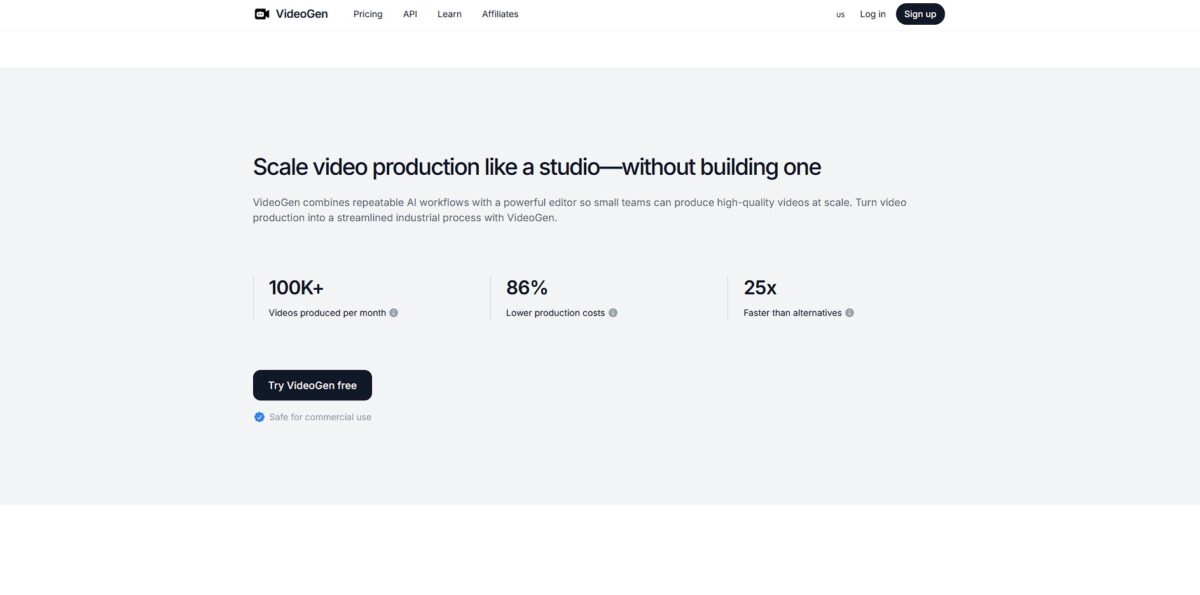
VideoGen turns static scripts into usable video clips in seconds. It skips the heavy timeline editing of traditional software by automating scene selection and layout. This is ideal for churn-and-burn social content where speed trumps custom animation, though you lose some granular creative control in the process. It eliminates the blank-page syndrome by suggesting visuals for you. Your time goes into refining the story instead of manual labor. Use it to prototype social ads fast, but look elsewhere for pixel-perfect brand films.
How to start using VideoGen.io?
Start at app.videogen.io. Log in with your email to hit the main dashboard. The interface is clean, keeping most options tucked into a sidebar so you can focus on the canvas. While browser-based tools sometimes lag with heavy media, this setup feels responsive for quick navigation.
Click New Video to see the available workflows. Most beginners should grab Script to Video. You’ll find a field to describe your idea, like “5 tips for marathon training.” Being specific here prevents the AI from generating generic filler that you’ll just have to delete later. Specificity saves you five minutes of manual script rewriting.
Choose your settings before hitting generate. You can toggle between standard stock and generative images. If you need a specific look, the AI Playground lets you cook up custom visuals. This is great for niche topics where standard stock libraries often fail to provide relevant clips.
Review the generated draft in the editor. You can swap clips, adjust the AI voiceover, or add captions. The timeline is simplified, meaning you won’t find the granular keyframing of professional suites, but it’s enough for social clips. Export at 1080p when you’re done to keep the text sharp for mobile viewers.
Who is it for?
Solo Content Creators
VideoGen helps you skip the hunt for stock footage by automating scene selection based on your script. This prevents the “creative block” that hits when you have a great voiceover but a blank timeline.
Social Media Managers
Generate faceless videos for TikTok or Reels in seconds to keep up with daily posting schedules. It turns static text updates into moving content that actually stops the scroll.
Small Business Owners
Create product explainers without hiring a production crew or learning complex keyframing. You can test marketing angles on a bootstrap budget.
Corporate Trainers
Transform dry internal memos or PDFs into digestible video snippets for staff onboarding. I noticed it works well for factual briefings but struggles with nuanced emotional storytelling.
Affiliate Marketers
Produce dozens of product review videos by feeding it blog links or descriptions. It automates the tedious assembly line of “top 10” style listicles.
Educational YouTubers
Build visual backgrounds for complex topics without spending hours in a traditional editor. This lets you focus on the research and script rather than the pixel-pushing. Use this for high-volume, information-heavy content; stick to manual editing if your brand relies on a specific, hand-crafted aesthetic.
VideoGen.io pricing
VideoGen offers tiered access built for different output volumes. You can test the waters with a restricted free version, but watermarks and limited export options mean it is mostly a sandbox for checking the AI’s logic before committing.
Best for solo creators needing steady social content. It provides 2,000 monthly credits and 50 GB of storage. This plan skips the generative video clips and AI avatars, focusing instead on assembling stock footage quickly. If you don’t need digital talking heads, that keeps your workflow affordable.
This tier is where the platform starts feeling like a replacement for a human editor for long-form explainers.
It includes iStock downloads, which solves the common headache of grainy or irrelevant background clips. This allows teams to automate personalized video production at scale via the API.
Custom pricing for high-volume teams requiring dedicated account management and top-priority AI compute.
VideoGen.io key features
Paste a raw script and watch the engine pull relevant b-roll from a massive stock library
It skips the manual search through thousands of generic clips. A text draft becomes a visual baseline in seconds.
Generate a natural-sounding voiceover directly from your text prompts
You can choose different accents and tones without hiring voice talent or recording yourself. Your audio and video pacing line up from the start.
Add automated subtitles and text overlays that sync with the audio track
The tool burns these directly into the video frames so you don’t have to manually time every word. Your content is instantly accessible for social media users scrolling on mute.
Select pre-set aspect ratios for TikTok, YouTube, or Instagram with one click
The layout adjusts elements like text positioning so they don’t get cut off by platform UI. No separate editing sessions for every social channel.
Apply global style templates to keep your branding consistent across multiple videos
I noticed the colors and fonts stay locked once you set your preferences in the dashboard, which keeps your feed from looking like a disjointed collection of random clips.
Modify the generated scenes using a simple drag-and-drop timeline
If the AI picks a clip that doesn’t fit, you can swap it out or trim the duration without starting over. The trade-off is less granular control than professional suites, but it’s much faster for quick turnarounds.
VideoGen.io Pros & Cons
Pros
VideoGen turns a blank script into a visual baseline in minutes by automatically matching text to relevant stock clips. It skips the manual hunt through generic libraries, allowing social media managers to scale output without a dedicated editor. I noticed the text-to-speech engine offers over 200 voices, which helps avoid that repetitive, robotic narration common in low-budget ads. This matters because you can test five different ad concepts in the time it usually takes to find a single background track. Use the Script-to-Video workflow if you need a quick first draft to iterate on.
Cons
The reliance on stock footage means results can feel generic or “clearly AI-generated” if you don’t swap out the default scenes. While it excels at speed, the editor lacks the deep timeline control required for high-emotion brand storytelling or complex custom animations. Transitions sometimes feel repetitive across multiple projects, making it less ideal for creators who need a distinct visual signature. That matters because your content might blend in with every other explainer video on the feed. Stick to short-form social clips rather than long-form narratives to keep the pacing tight.
Use VideoGen.io if you want…
- Turn static scripts into viral social clips instantly.
- Automate B-roll selection without manual searching.
- Scale faceless YouTube channels with high-speed production.
- Generate professional voiceovers in over 200 distinct voices.
- Create scroll-stopping ads for TikTok and Instagram Reels.
- Prototype marketing concepts before investing in full shoots.
- Bridge the gap between raw text and visual storytelling.
- Maintain a daily posting schedule with zero effort.
VideoGen.io alternatives


VideoGen.io Reviews
VideoGen is a lifesaver for my faceless YouTube channel, turning scripts into decent drafts with stock B-roll in minutes. The AI-selected visuals can be hit-or-miss, but it’s a huge time-saver for high-volume content.
Perfect for quick social ads when I don’t have time for a full edit. The text-to-speech voices sound surprisingly natural, though I wish there were more granular controls for the final video transitions.
Great for rapid prototyping and getting over the “blank page” hurdle. However, the reliance on static stock images can feel a bit repetitive if you’re making multiple videos on the same topic.
FAQ
Can I use VideoGen.io videos for commercial purposes?
Yes, paid plans include full commercial use rights, allowing you to use generated content for advertisements, social media campaigns, and client work with copyright-safe assets.
Does VideoGen.io support multiple languages?
Yes, the platform supports over 40 languages and provides more than 200 unique AI voices to help you create content for a global audience.
What is the maximum resolution for exported videos?
VideoGen.io supports high-definition exports, with resolutions available up to 4K depending on your subscription plan.
Can I upload my own media to VideoGen.io?
Yes, you can upload your own photos and video clips to the dashboard to personalize your projects alongside the built-in library of over 3 million stock assets.
Does the AI automatically add subtitles?
Yes, VideoGen.io features an automated subtitling tool that generates and syncs captions for your videos to increase engagement on social platforms.
Are there limits on how many videos I can create?
While the platform offers unlimited video creation, fair-use limits apply to prevent system abuse, with higher priority and faster processing reserved for Pro and Business users.
What aspect ratios are supported?
The tool supports multiple aspect ratios, including 9:16 for TikTok and Reels, 16:9 for YouTube, and 1:1 for Instagram posts, adjusting your content automatically for each platform.
Similar tools
 AIAIAll-in-one AI studio that puts Veo, Sora, Kling, Seedance and other models behind one credit balance for video, images, music and voice.
 ToMoviee AIWondershare's AI creative studio that turns text prompts and images into short videos, pictures, music, sound effects and voiceovers.
 Morph StudioBrowser AI video studio that runs Seedance, Kling, Veo and its own style transfer model, with a storyboard canvas for multi-shot clips.