

Vidgo AI
Video GenerationUpdated October 5, 2026
Vidgo AI is a multi-model hub transforming text and images into high-quality cinematic video clips and social-ready teasers.
We may earn a commission when you sign up through our links. It does not affect our reviews.
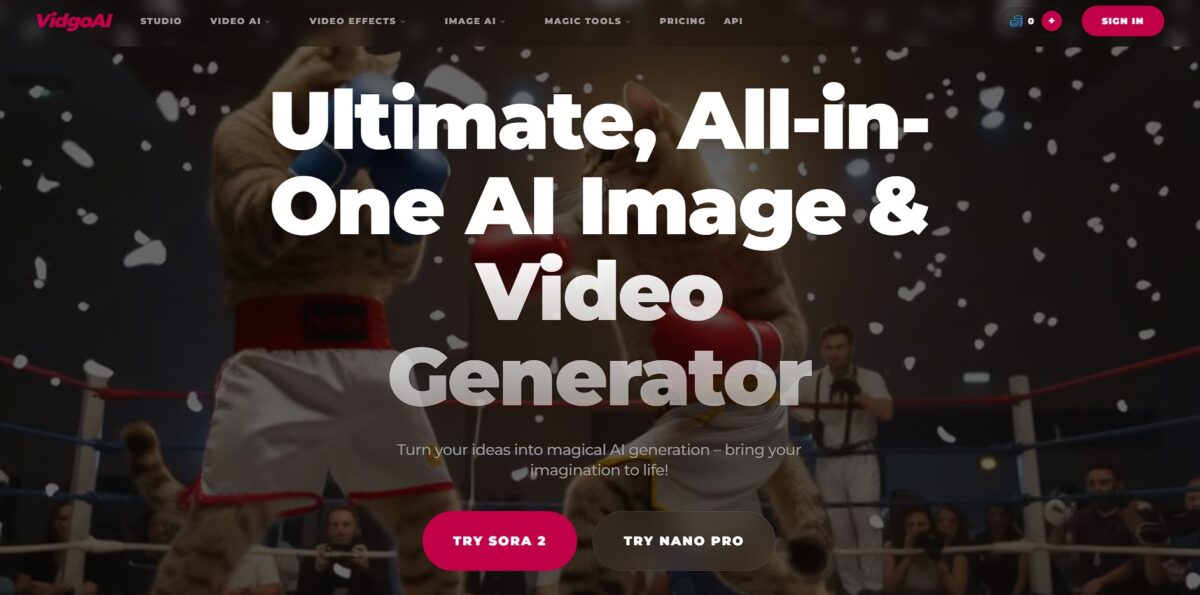
What is Vidgo AI?
Vidgo AI functions as a multi-model hub that turns text descriptions or static images into short motion clips. Instead of locking you into one look, it lets you toggle between different underlying AI models to prioritize either photorealistic movement or specific artistic styles. This flexibility helps when a prompt for a realistic person fails in one engine but succeeds in another, though the variety can occasionally feel like a scattergun approach to consistency. You effectively bypass the steep learning curve of professional timeline editors to produce social-ready teasers or concept demos in minutes. This matters because it removes the technical friction of jumping between different developer platforms to find the right aesthetic for a project. Use this as your primary scratchpad for testing how different AI “brains” interpret your specific creative prompts.
How to start using Vidgo AI?
Head to the Vidgo AI website or find it on the WebCatalog app store to get started. You can use it directly in a browser, but some users find dedicated desktop windows more stable for rendering. Sign in to see your dashboard, where the credit balance sits front and center.
The interface centers on two main paths: text-to-video and image-to-video. If you have a specific character in mind, upload a clear, front-facing photo first. That way the AI doesn’t have to guess facial features, which usually leads to flickering or distorted expressions during movement, and a reference image keeps your visual style consistent across different clips.
Type your prompt into the generation field. Instead of generic terms, describe specific motions like nodding, walking, or a particular camera pan. I noticed that including “cinematic lighting” helps the model better define shadows on moving subjects. Precise descriptions reduce the need for multiple re-renders that eat through your credits.
Once the settings look right, hit the generate button. The processing time varies depending on server load, but usually takes a few minutes for a short clip. Review the result immediately to ensure the motion physics don’t break. While it handles simple animations well, complex physics like liquid or intertwined limbs often need a second try.
Who is it for?
Social Media Hustlers
Vidgo AI helps you churn out vertical clips from single-sentence prompts. This keeps your feed active when you lack the time to film or edit manually.
Bootstrapped Startups
You can generate product explainers or ad concepts without hiring a studio. It translates tech specs into visual demos in minutes.
Solo Content Creators
It functions as an extra pair of hands for B-roll generation. While it won’t replace a lead animator, it fills gaps in a timeline where stock footage feels too generic.
Marketing Generalists
The multi-model hub lets you test different visual styles for a single campaign. You can find the aesthetic that actually converts before committing a full budget.
Rapid Prototypers
It works well for mocking up storyboards or mood boards for client pitches. I noticed it’s better at general concepts than specific, pixel-perfect character details.
Casual Experimenters
The browser-based interface is accessible if you just want to see your D&D character move. It removes the barrier of complex software installation or high-end GPU requirements.
Vidgo AI pricing
Vidgo AI pricing centers on a pay-as-you-go credit system that scales from personal experimentation to heavy agency use. Every model draws on one shared credit balance, and each model page shows its credit cost before you run a job, which keeps your costs predictable even when generating detailed motion sequences. The entry barrier is low for testing, but the balance drains quickly once you start processing multiple variations of a single scene.
This lets you test how the model interprets specific lighting or textures without opening your wallet.
You move past the trial phase without committing to a subscription.
This suits active creators who need to generate several dozen clips each month.
higher per-clip rates, such as about $0.375 for an 8-second Gemini Omni Flash clip. Failed jobs are not billed, which matters when you are re-rolling against a client deadline.
This setup centralizes billing for teams that need a shared account. Because there is no subscription, you only pay for what you actually render. A monthly plan would be wasteful if you only need the tool for a one-off project. Use budget models for drafts and save premium engines for final renders if you want the lowest cost-per-clip for consistent social media posting.
Vidgo AI key features
Swap between specialized backends like Kling, Runway, and Veo from a single dashboard
This saves you from managing four different subscriptions when you need to test which model handles specific limb physics better. You can find the best render for a complex scene without paying for multiple monthly plans.
Animate static portraits into videos using specialized “AI Kissing” or “AI Hug” effects
These presets bypass the struggle of prompting realistic human contact, which often results in melting faces on other platforms. It’s a quick way to generate emotive social content without manual frame editing.
Generate 2D and 3D assets using the integrated Flux and GPT Image 2 engines
You can create a character as an “AI Action Figure” and immediately feed that image into the video generator for consistent look-and-feel. The result is one workflow from concept art to motion.
Control character motion by transferring dance moves or specific performances from a reference video to your image
This eliminates the guesswork of text-based physics by forcing the AI to follow a real-world movement path. You get precise choreography for your avatars without needing expensive motion capture gear.
Produce cinematic sequences that maintain character consistency across different shots
The transformer-based architecture tracks your protagonist’s features to prevent them from looking like a stranger in the next scene. You can stitch together a coherent narrative instead of just random clips.
Vidgo AI Pros & Cons
Pros
Vidgo AI accelerates the transition from a text prompt to a 1080p visual without requiring manual keyframing. It handles basic lighting and texture rendering with enough speed to let you iterate through three or four variations in the time a manual editor would spend just opening a project file. I noticed it holds up well when generating simple landscapes or character portraits, keeping the focal points clear. This matters because it removes the technical bottleneck for creators who need quick social media assets but lack a high-end GPU. Start with simple prompts to get a stable base before layering in complex motion commands.
Cons
The logic often breaks when you introduce complex physical interactions, such as hands holding small objects or multi-person contact. Fine details like text on signs or specific eye shapes can warp into unrecognizable patterns during camera pans. While the entry price seems low, the credit consumption spikes if you need multiple regenerations to fix a jittery frame. A 5-second clip can get expensive if the AI struggles to interpret your specific physics request. Use it for atmospheric b-roll rather than character-driven scenes that require perfect anatomical precision.
Use Vidgo AI if you want…
- Animate static photos into high-fidelity motion sequences instantly.
- Convert complex text outlines into polished social media clips.
- Access premium engines like Kling and Runway in one place.
- Apply viral effects like AI kissing or hugging effortlessly.
- Generate consistent AI characters for brand storytelling projects.
- Upscale existing footage for professional-grade visual clarity.
- Transform scripts into dynamic marketing teasers with ease.
- Create secure, privacy-first video assets for sensitive concepts.
Vidgo AI alternatives
 Veo 3.1Read review →
 Kling AIRead review →
 Runway Gen-4.5Read review →
 PikaRead review →
 Hailuo AIRead review →
 Wan 2.6Read review →
 PixVerseRead review →
 InVideo AIRead review →
Vidgo AI Reviews
The ability to toggle between different models makes Vidgo AI a fantastic scratchpad for finding the right aesthetic without jumping between platforms. It’s perfect for quick social teasers, though you might need a few tries to get the consistency exactly where you want it.
I love using Vidgo as a multi-model hub because it lets me test different AI ‘brains’ on the same prompt to see which one handles photorealism better. It’s significantly faster than traditional editors for producing concept demos, even if some outputs feel a bit experimental.
Vidgo AI is my go-to for bypassing the steep learning curve of complex video software when I need a high-quality visual in minutes. The flexibility to switch artistic styles on the fly is a game-changer for my creative workflow.
FAQ
What inputs does Vidgo AI support?
It supports text-to-video prompts and image-to-video generation, allowing you to create motion from scripts, outlines, or still images.
Can I choose different AI models?
Yes, Vidgo AI offers multiple model options so you can prioritize realism, animation, or a particular visual style depending on your project needs.
Do I need prior video editing experience?
No, the interface is designed to simplify prompt-based creation, though refining results benefits from basic prompt-writing skills.
How is my data protected on the platform?
Vidgo AI includes privacy protection measures tailored for professional use, ensuring brand-safe workflows for sensitive projects.
Is there a refund policy available?
Yes, Vidgo AI promotes a worry-free refund policy for its users. You should check the official terms on their website for specific eligibility and timelines.
How long does it take to generate a video?
Render time depends on clip length, model choice, and system load. Short clips usually complete quickly, while complex scenes may take longer to process.
Similar tools
 AIAIAll-in-one AI studio that puts Veo, Sora, Kling, Seedance and other models behind one credit balance for video, images, music and voice.
 ToMoviee AIWondershare's AI creative studio that turns text prompts and images into short videos, pictures, music, sound effects and voiceovers.
 Morph StudioBrowser AI video studio that runs Seedance, Kling, Veo and its own style transfer model, with a storyboard canvas for multi-shot clips.