
Visla
Content CreationUpdated November 19, 2026
AI video platform that turns scripts, documents, webpages and recordings into editable business videos with avatars, stock footage and team review.
We may earn a commission when you sign up through our links. It does not affect our reviews.
What is Visla?
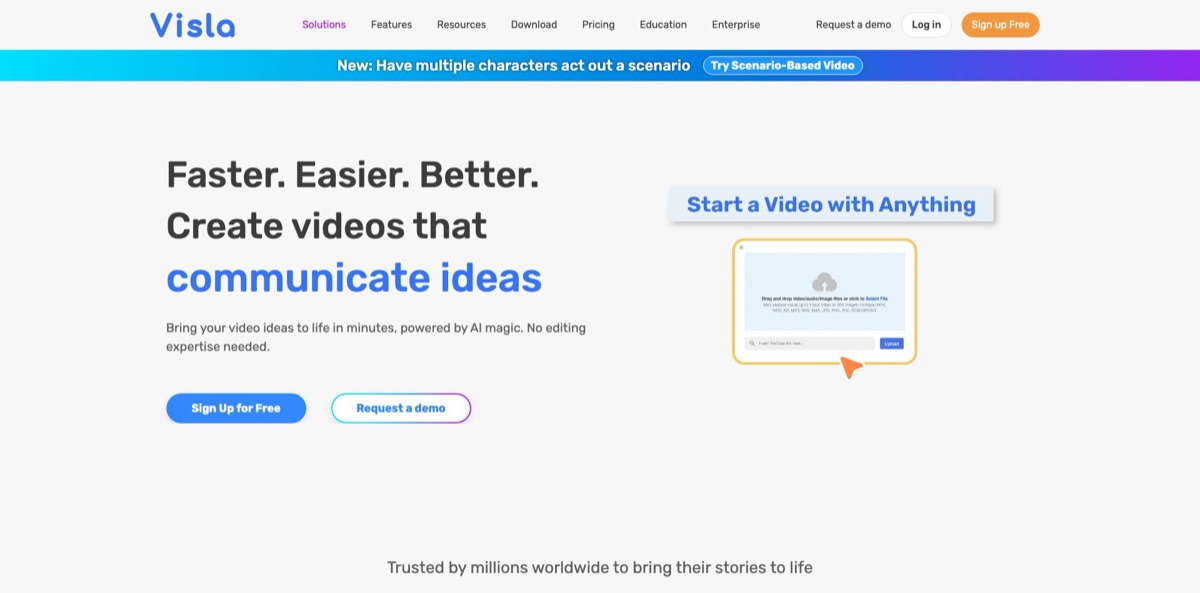
Visla is a browser, desktop and mobile video platform for business teams that puts three jobs in one workspace: recording, AI-assisted video creation and transcript-based editing. You give its AI Video Agent an idea, a script, a webpage, a PDF or PowerPoint, an audio file or raw footage, and it drafts a full video with narration, subtitles, stock B-roll, music and transitions that you then fix scene by scene. Newer modes generate fully AI-made footage with consistent characters, and higher plans add custom avatars, voice cloning and Getty Images stock. The weak spot is cost predictability: everything runs on credits, and AI-generated footage burns them about 25 times faster than stock-based edits. Pick it if your team regularly turns documents and recordings into training, sales or product videos and wants review and hosting in the same place.
How to start using Visla?
Create an account with the Sign Up for Free button. The Free plan gives you a full-feature workspace, unlimited recordings and uploads, 3 hours of transcription a month and 10 GB of storage, with a Visla watermark on exports. Visla runs in the browser, and the Download page offers desktop apps plus iOS and Android apps if you plan to record your screen or use your phone as a webcam. Free accounts get a small monthly allowance of base credits and cannot buy extra ones, so treat this tier as a test bench rather than a production plan.
For a first real project, open the AI Video Agent and choose your starting point. A one-line idea is enough, but drafts are better when you feed it material you already own. Paste rough notes and Visla rewrites them into a video-ready script, or paste a finished script and the Agent builds the video around your exact words. You can also hand it a webpage URL, a PDF, a PowerPoint deck, a podcast file or a set of clips and images. A sensible first test is turning an existing help article or SOP into a short explainer.
The setup screen is where you steer the result. Under Content you set the topic or source, under Format the length, pace, language and aspect ratio, under Style the AI voice, an optional avatar and the subtitle look, and under Media the footage libraries the Agent may use: Free Stock, Premium Stock or your own Private Stock. If you want fully generated visuals instead of stock, switch to AI Director Mode. It shows the characters, objects and environments it plans to use, then lets you approve the storyboard and pick which scenes become AI clips before the expensive generation runs.
The draft opens in the Scene-Based Editor. Rearrange or cut scenes, swap footage, rewrite on-screen text, adjust pronunciation and apply your brand colors, fonts and logo. Teammates in the same Workspace or Teamspace can co-edit and leave timestamped comments, and once the video is approved you download it, share a link or copy an embed code. The workspace dashboard shows credit use in near real time, so you quickly learn what each project type costs.
Start with a stock-based video built from a document you already have, since it costs around 200 credits per minute, and move to AI Director Mode only once you know your monthly credit budget.
Who is it for?
Marketing teams
You need launch clips, social cuts and explainers every week but have no editor on staff. Visla turns a landing page, campaign brief or blog post into an editable draft with stock footage and music, and brand kits keep colors and logos consistent. You publish more video without booking an agency for every asset.
L&D and HR trainers
Your SOPs and onboarding decks sit in PDFs nobody opens. Upload the file and Visla builds narrated scenes with subtitles and an optional AI presenter, Scenario-Based Video stages role-play conversations, and Enterprise adds SCORM export for your LMS. Updating a course means editing text instead of reshooting.
Sales and customer success reps
Personal walkthroughs beat long emails, but recording them eats your day. The recorder, teleprompter and call-to-action buttons on hosted videos let you send short, clickable explainers, and support teams can turn screen steps into how-to videos and GIFs. Prospects and customers get answers they can actually watch.
Product managers
Release notes and feature demos need visuals, and engineers rarely want to be on camera. Record the screen with auto zoom and click highlights, or feed product notes to the Agent and add an avatar presenter. Each release gets a video without a filming day.
Internal communications teams
Company updates and leadership notes get skimmed or ignored. Visla converts announcements and internal documents into short branded videos with captions, and Zoom cloud recordings can flow straight into your library for editing. Internal messages turn into something people finish.
Teachers and schools
Visla runs a dedicated education track. Teachers can turn lesson slides into narrated videos, and students can record, edit and submit assignments with the same tools. Try the Free plan first to see whether the watermark and credit limits work for your class.
Visla pricing
Every plan includes a monthly pool of base credits, and almost every action spends them: script generation, voiceover, transcription, avatars, storage and, above all, AI-generated footage. Base credits refresh each billing month and do not roll over. Pro and Business users can buy flexible credits that do roll over, while Free users have to wait for the monthly reset. Annual billing keeps the same monthly credit refresh but lowers the fee. Visla runs a strict no-refund policy, and cancelling only stops renewal at the end of the current period. Prices below come from the official pricing page and Visla’s April 2026 plan announcement.
Full-feature workspace, AI video creation, collaborative editing, mobile apps, unlimited recordings and uploads, 3 hours of transcription a month, 10 GB of storage and 1080p export with a Visla watermark. You cannot buy flexible credits on this tier.
The pricing page shows annual billing saving 32% against monthly on the entry tier. Includes unlimited co-editors, 2M+ Storyblocks videos, screen and camera recording, AI video translation, API access, 2 custom avatars, Windows, Mac, iOS and Android apps, 1080p export and uploads up to 3 GB or 1 hour per file. Flexible credits cost 150 per dollar, and Getty Images is a paid add-on.
Visla’s help center lists $59/month for the base tier on monthly billing. Adds the full brand kit, 16M+ Getty Images and Storyblocks videos, Private Stock with AI labeling, 4K export, 3 voice clones, 3 custom avatars, a usage dashboard and uploads up to 20 GB or 3 hours. Flexible credits cost 100 per dollar.
Custom pricing. Everything in Business plus unlimited workspaces, multiple brand kits, SSO, custom usage limits and billing, a dedicated account manager, onboarding and training, unlimited voice clones and custom avatars, and SCORM package download.
Visla key features
The AI Video Agent is the core workflow
Give it a prompt, notes, a finished script, a URL, a PDF or PPT, audio or your own clips, and it plans scenes, writes or adapts the script, picks stock or Private Stock footage, generates voiceover, times subtitles, adds music and transitions, then hands you an editable project. A finished script stays untouched while rough notes get rewritten.
AI Director Mode and Scenario-Based Video produce fully AI-generated footage while keeping characters, products, logos and environments consistent from scene to scene. You review a storyboard of still images, tweak prompts and choose which scenes to render, and the Visual Asset Library saves characters and settings for later projects. Scenario-Based Video adds multi-character dialogue, which suits role-play training. Expect roughly 5,000 credits per minute without a speaking character and about 8,000 with one.
Avatars and voices let you present without a camera
A public avatar library is available on every plan, custom avatars come from a text prompt on Pro and from a photo or webcam snapshot on Business, and Advanced Avatars add better lip sync, gestures and expressions for full-screen scenes. Voice cloning costs 2,000 credits per voice, with 3 voices on Business and unlimited on Enterprise.
Transcript-based editing treats video like a text document
You find, cut, extract and rearrange content straight from the transcript, and autocuts remove filler words, repeated phrases and long pauses. Topic-based extraction pulls key segments out of long recordings, B-roll recommendations suggest cutaways for interviews, and transcripts download as TXT, SRT or VTT. Long webinars and meetings become short clips quickly.
The recording suite covers full-screen, window and area capture with system audio, camera and multi-camera recording, a teleprompter, phone-as-webcam, background removal, annotations, click highlights, auto zoom and auto panning. Screen Step Recording captures each action and builds a step-by-step guide with AI annotations, narration and music, and the steps can also be exported as GIFs.
Stock and branding tools cover a free stock library on every plan, 2M+ Storyblocks clips on Pro, Storyblocks plus Getty Images on Business and Enterprise, and a Private Stock library for your own assets with AI auto-labeling from Business up. Global and project-level brand settings handle logos, colors, fonts, intros and outros. Videos stay on brand even when a dozen people are making them.
Collaboration and distribution run through Workspaces and Teamspaces with owner, member and guest roles, permission levels, timestamped comments and approvals. Hosted videos support call-to-action buttons, embeds and closed captions, and integrations cover Slack, Zoom cloud recordings, Zapier with 6,000+ apps, Canva and Adobe Express. The API on paid plans and SCORM export on Enterprise connect Visla to your own apps and LMS.
Visla Pros & Cons
Pros
Visla covers the full path from raw material to a shareable business video in one tool: recording, AI drafting, transcript editing, review and hosting. The AI Video Agent accepts almost any input, including PDFs, decks, webpages and audio, and keeps your script word for word when you want it to. Transcript-based editing with automatic filler, pause and repetition cuts saves real time on talking-head and meeting footage. Licensed Storyblocks and Getty stock, brand kits, SOC 2 Type II compliance and SSO make it acceptable for corporate use, while Zoom, Slack, Zapier, Canva and Adobe Express integrations plus an API fit it into existing workflows. Run your first projects in stock-based mode to see where it saves the most hours.
Cons
Credit accounting is the main friction point. Each task type consumes credits at a different rate, AI Director footage runs about 5,000 to 8,000 credits a minute, and base credits disappear at month end, so budgets are hard to forecast. Reviewers also mention generic B-roll picks, scripts that are not always followed closely, an interface with a learning curve and support limited to US business hours. The no-refund policy covers change of mind, unused time and missed cancellations, and several Trustpilot users report billing surprises. Custom voice cloning starts at Business. Stay on monthly billing until you have tracked a full month of real credit use in the dashboard.
Use Visla if you want…
- Turn PDFs and slide decks into narrated training videos.
- Convert webpages and blog posts into short explainer videos.
- Edit recorded meetings by deleting words from transcripts.
- Record screen tutorials with auto zoom and click highlights.
- Generate multi-scene AI videos with consistent recurring characters.
- Add AI avatar presenters with your own cloned voice.
- Translate narration, subtitles and on-screen text into other languages.
- Keep team videos on brand with shared brand kits.
- Automate video creation through Zapier or the Visla API.
Visla alternatives

Visla Reviews
G2 reviewers say the tool is easy to pick up without any editing background and that the premium stock library makes business videos look polished; the most common wish is finer control and a smoother editing UX.
One G2 user likes that Visla charges by credits rather than seats and packs in a lot of features, while another calls the newer credit system confusing to plan around.
On Product Hunt, users praise quick screen capture, transcript-based editing and Idea to Video for fast drafts, though earlier reviewers found templates limited and the AI voices robotic.
A trainer on Trustpilot credits Visla with fast internal and external training videos made without prior video experience, while 2026 reviews there describe a buggy interface, generic B-roll and slow support.
Several Trustpilot reviewers are unhappy with the no-refund policy and with charges they did not expect after upgrading, so they advise testing the Free plan first.
FAQ
Is there a free plan?
Yes. The Free plan costs $0 and includes AI video creation, unlimited recordings and uploads, 3 hours of transcription a month and 10 GB of storage, but exports carry a Visla watermark and you cannot buy extra credits.
How do Visla credits work?
Base credits come with your plan, refresh every billing month and do not roll over. Flexible credits, sold only on Pro and Business, roll over month to month, and all members of a workspace share one credit pool.
How much video can I make with my credits?
Stock-based videos made from text, documents or slides use roughly 200 to 400 credits per minute. Fully AI-generated footage in AI Director Mode uses about 5,000 credits per minute, or around 8,000 with a speaking character.
Can I get a refund or cancel anytime?
You can cancel in your account settings, and you keep your plan until the period ends. Visla does not issue refunds, including for unused time or renewals you forgot to cancel.
Does Visla have an API?
Yes. The API is available on Pro, Business and Enterprise; you create a key with the Generate API Key button in Workspace Settings. Zapier support covers no-code automation.
Is my data secure in Visla?
Visla is SOC 2 Type II compliant, encrypts data at rest with AES-256 and in transit with TLS 1.2 or newer, and supports role-based permissions and access logs. SSO is available on Enterprise.
Which languages does Visla support for translation?
The Video Translator page lists English, Italian, French, Portuguese, Spanish, German and Dutch. It translates narration, subtitles, on-screen text and video metadata, and you can save a copy in the original language.
Can I use Visla’s stock footage commercially?
Visla says its Storyblocks and Getty Images partner footage is cleared for commercial use, though you should still follow each library’s terms. You can also mix it with your own assets in Private Stock.
Similar tools
 WritefullAcademic writing AI for Word, Overleaf and the browser, with journal-trained language edits, an Academizer, a paraphraser and title and abstract generators.
 TypefaceEnterprise marketing AI platform that turns brand guidelines into AI agents for on-brand emails, ads, web pages and campaign variants at scale.
 Storyboarder.aiAI pre-production platform that turns scripts or ideas into shot lists, consistent storyboard frames, animatics and pitch decks for film and ad